CloudWatch
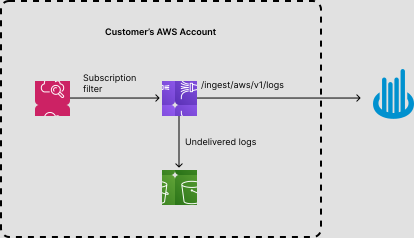
Oodle provides a seamless integration with AWS CloudWatch Logs. It can be achieved by streaming CloudWatch Logs to AWS Data Firehose which delivers logs to Oodle.
The following diagram shows the data flow from CloudWatch Logs to Oodle.
Configuration
AWS Data Firehose Delivery Stream
To setup the integration, you need to create a AWS Data Firehose delivery stream configured to deliver logs to Oodle endpoint. AWS Data Firehose put undelivered logs to a backup S3 bucket. You will need following parameters to configure the integration:
OODLE_INSTANCE: Your Oodle instance ID. Go toSettingsicon ->API Keyspage in your Oodle UI to find out. (Oodle UI links: ap1, us1)OODLE_API_KEY: Your Oodle API key for authentication. Go toSettingsicon ->API Keysin your Oodle UI to choose an appropriate key. (Oodle UI links: ap1, us1)OODLE_ENDPOINT: The Oodle endpoint URL for log ingestion. Note the endpoint URL must begin with "https://" per Firehose specification.
We provide a CloudFormation template to create the necessary resources in your AWS account. You can use Quick Create link to create the CloudFormation stack in your AWS account. You will be asked to enter the parameters mentioned above. Be sure to choose the appropriate AWS region in which you want to create the stack. Alternatively, you can download the template from S3 and use it to create the resources in your AWS account.
The CloudFormation stack creates the following resources:
- IAM Roles
LogStreamRole: role to be assigned while creating subscription filter in log groups. Provides permission to put logs into Firehose.FirehoseRole: role assigned to Firehose delivery stream, provides permission to write undelivered events to S3 bucket.
- S3 Bucket
S3BackupBucket: bucket to hold undelivered logs from Firehose.
- Firehose Delivery stream configured to send events to Oodle's http endpoint
CloudWatch Logs Subscription Filter
After the CloudFormation stack is created, you need to create a CloudWatch Logs subscription filter to deliver logs to the Data Firehose delivery stream. The subscription filter immediately starts the flow of real-time log data from the chosen log group to your Amazon Data Firehose delivery stream:
aws logs put-subscription-filter \
    --log-group-name "<log-group-name>" \
    --filter-name "Oodle" \
    --filter-pattern "" \
    --destination-arn "arn:aws:firehose:<region>:<aws-account-id>:deliverystream/<delivery-stream-name>" \
    --role-arn "arn:aws:iam::<aws-account-id>:role/service-role/<log-stream-role-name>"
For the command above, you'll need to use the following parameters:
<log-group-name>: The name of your CloudWatch log group that contains the logs you want to send to Oodle<region>: The AWS region in which the CloudFormation stack was created<aws-account-id>: Your AWS account ID<delivery-stream-name>: The name of the Firehose delivery stream created by the CloudFormation stack<log-stream-role-name>: The name of the LogStreamRole created by the CloudFormation stack
You can find the <delivery-stream-name> and <log-stream-role-name> in the Resources tab of the CloudFormation stack that was created:
- Navigate to the CloudFormation console in the AWS Management Console
- Select the stack you created (e.g., "oodle-log-stream-v1")
- Click on the "Resources" tab
- Look for Physical ID with Logical ID:
- "LogStreamRole" to find the
<log-stream-role-name> - "Firehose" to find the
<delivery-stream-name>
- "LogStreamRole" to find the
Setup
-
Open
Settings->Integrationspage in Oodle UI. -
Choose
Amazon Web Servicesintegration tile. -
Select the appropriate API key from the dropdown at the top of the drawer

-
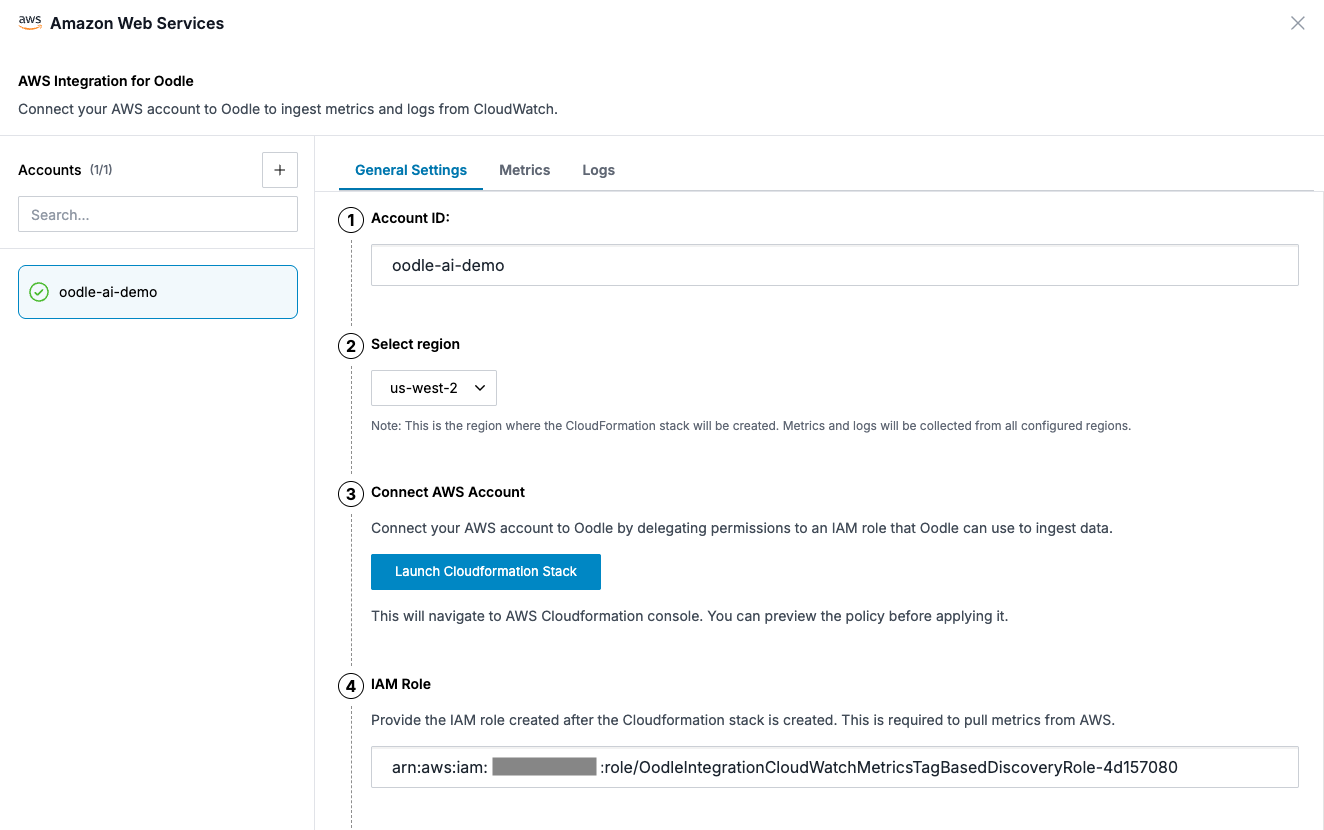
Add your AWS account by entering AWS account ID and launching the Cloudformation Stack. The Cloudformation stack creates an IAM role to provide Oodle access to your AWS account
-
Configure metrics to be collected in the Metrics tab. You can filter for specific AWS services and also via tags to filter within a AWS service.
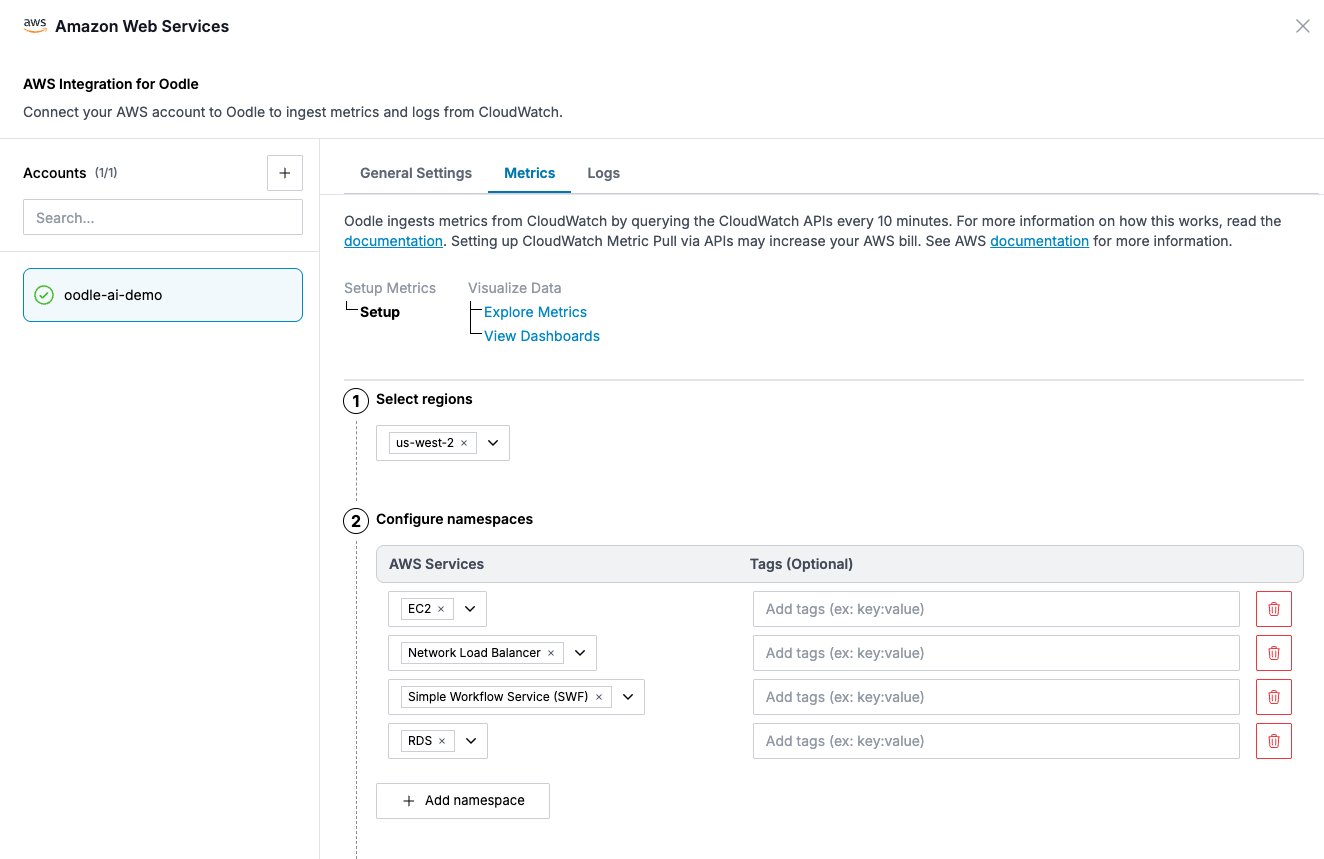
Oodle pre-configures dashboards for your selected services.
-
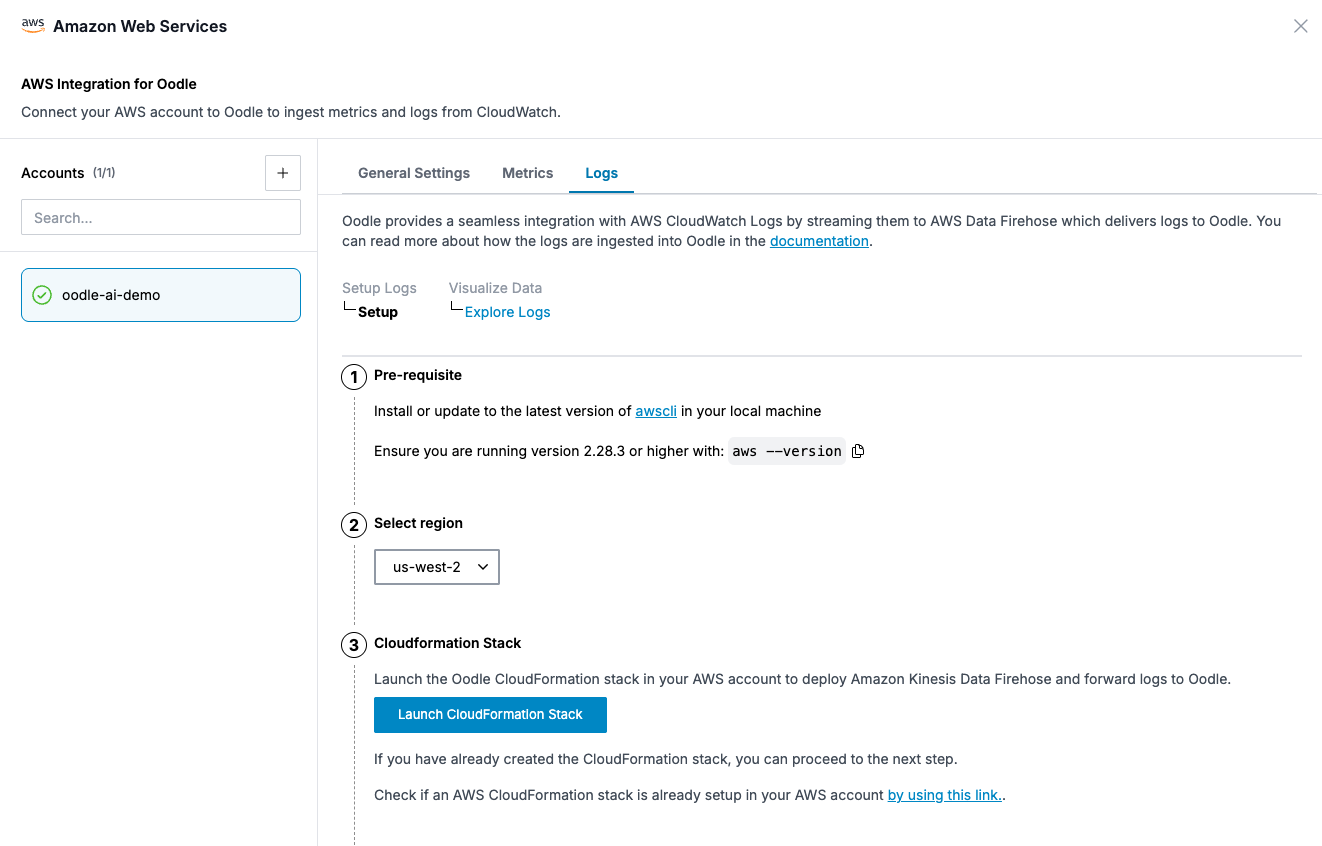
Configure CloudWatch logs to be collected in the Logs tab by following the instructions.
Billing Considerations for Logs
You will incur Amazon Data Firehose charges, in addition to your existing CloudWatch Logs costs.
Support
If you need assistance or have any questions, please reach out to us through:
- Email at [email protected]