Traces Summary
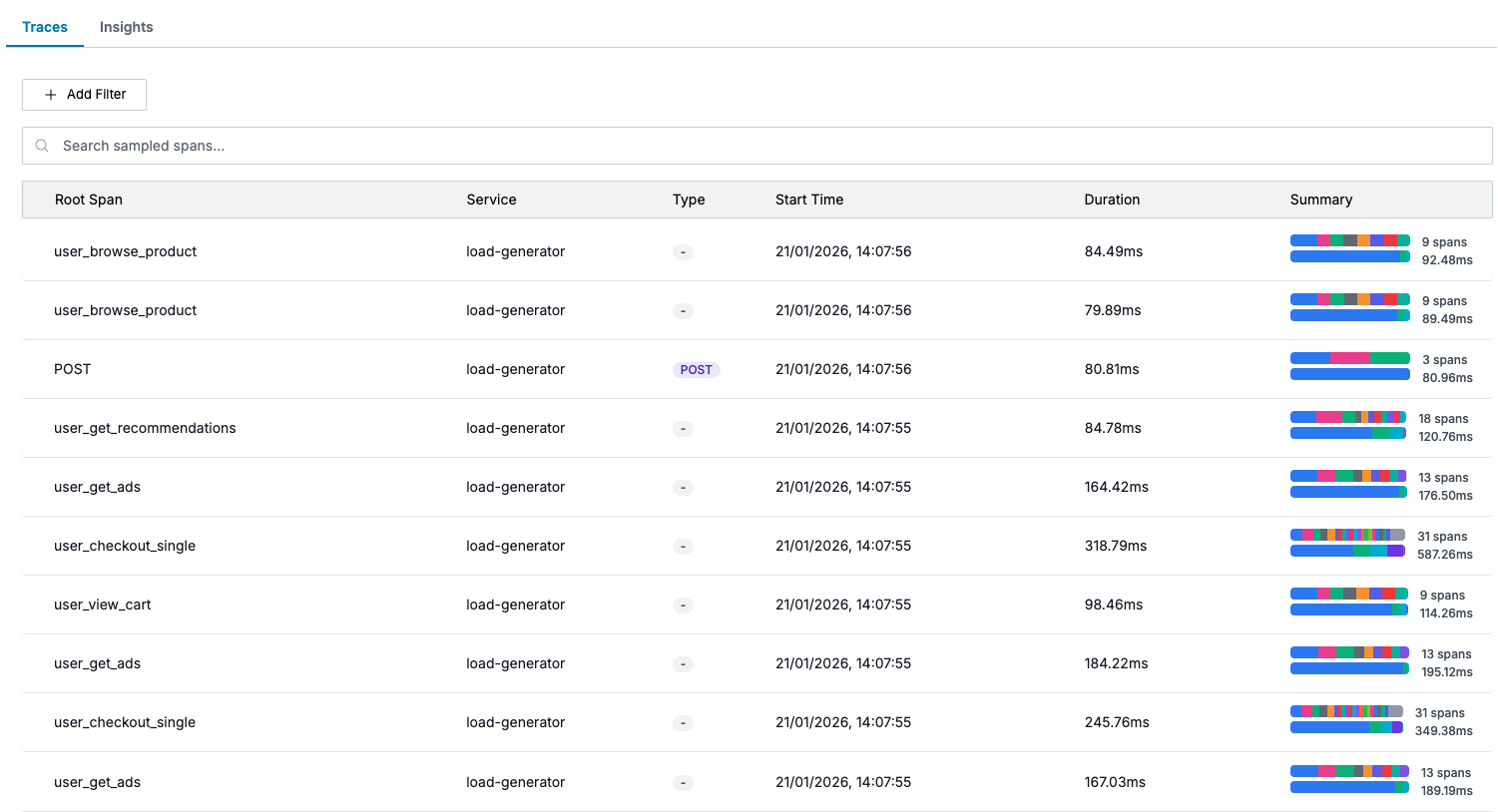
The Traces tab in the Trace Explorer page displays a searchable list of sampled spans matching your current filters. Each row represents a trace root span with summary information.
Trace List Columns
Each trace in the list displays:
| Column | Description |
|---|---|
| Root Span | The operation name of the trace's root span |
| Service | The service that generated the root span |
| Type | HTTP method (GET, POST) or protocol (gRPC) |
| Start Time | When the trace began |
| Duration | Total trace duration |
| Summary | Visual bar showing span count and timing breakdown per service |
Searching and Filtering
Filter from Selection
After selecting a region on the distribution heatmap:
- The trace list automatically filters to matching spans
- Duration and time constraints are applied
- Use this to focus on slow or anomalous requests
Filter Bar
The filter bar above the list has two modes over the same filters:
- Builder adds one row per filter. Pick a label name (for example
span::http.status_code_intorresource::service.name), pick an operator, then enter or select the values to match. - Code writes the same filter as a query, with autocomplete over
the labels and values your traces carry:
resource::service.name = checkout AND span_status = Error.
Filters are combined with AND, so every one has to match. To match any
of several values on one label, use label in (a, b).
Ask AI writes the query for you: describe the filter you want and the assistant fills the bar in.
See Filter Query Language for the full syntax, the operators, and worked examples.
Trace Row Details
Summary Bar
The summary bar on each row visualizes:
Span Distribution
Span Distribution gives a color-coded summary of how many times each span is occurring in the trace.
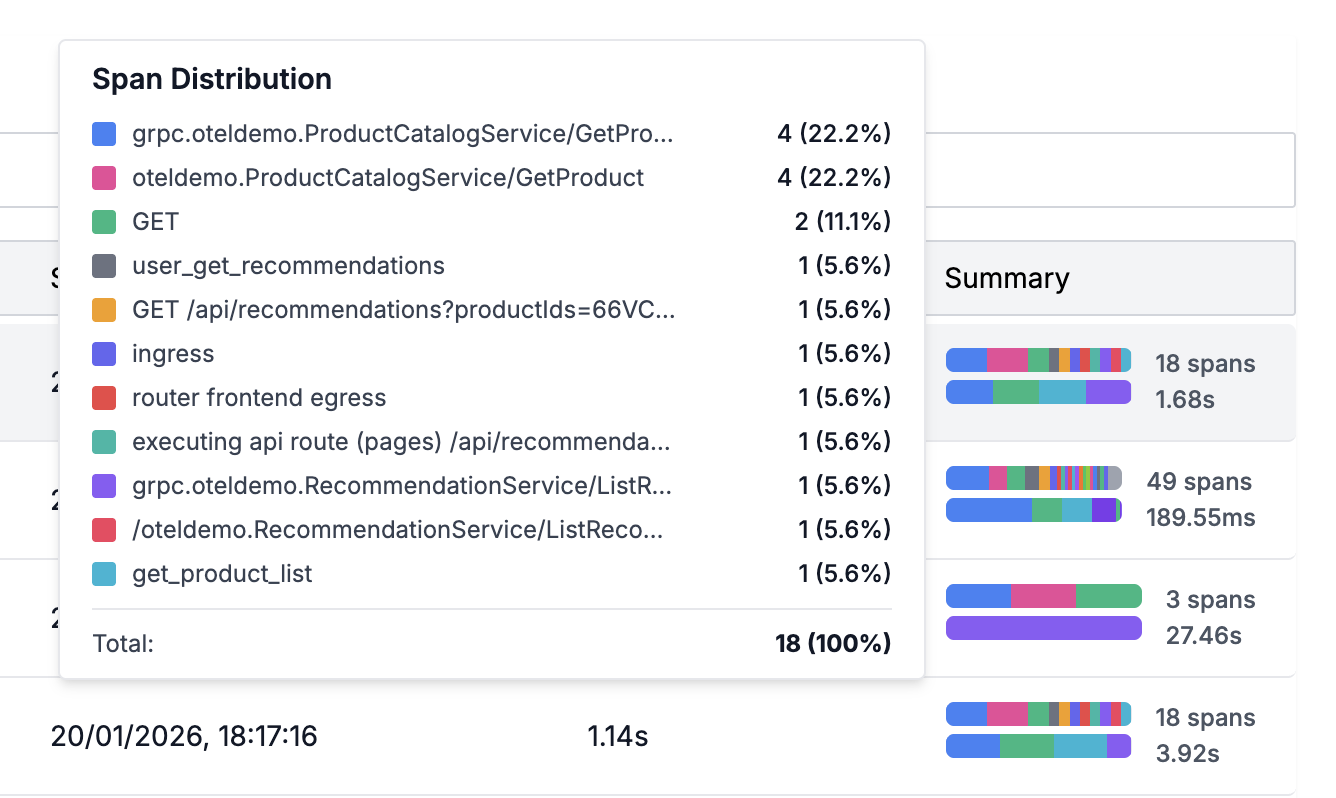
This can quickly help you identify N+1 queries/api calls as repeated queries would be surfaced higher in the summary distribution.
N+1 Query pattern is a performance problem in which the application makes repeated calls to Database or another service in a loop instead of using batched APIs.
Duration by Service
Duration breakdown by Service gives a color-coded summary of time spent by each service involved in the trace.
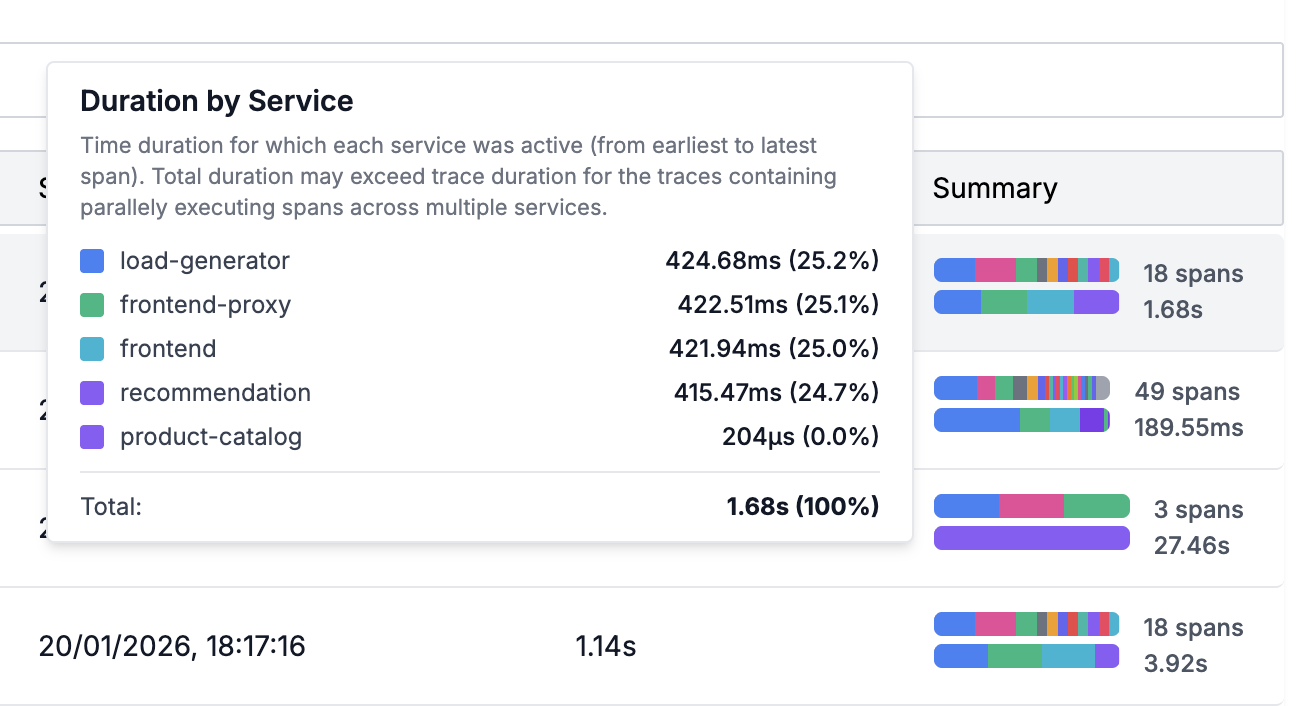
This can quickly help you identify the offending service which is causing higher latency.
Expanding a Trace
Click on any trace row to open the Trace View panel, which shows:
- Full span waterfall
- Span attributes and metadata
- Related logs and metrics
- Service graph context
Best Practices
- Start broad, then narrow: Begin with a time range, then add service or status filters
- Use the heatmap selection: Drag on the distribution chart to quickly isolate slow or problematic traces
- Check the summary bar: A trace with many spans or long duration may indicate N+1 queries or cascading delays.
- Drill down into a trace: To identify what's causing the slowness or error in the execution.
Support
If you need assistance or have any questions, please reach out to us through:
- Email at [email protected]