Metrics Drop Rules
Drop Rules let you prevent specific metric time-series from being ingested into Oodle. Every sample that matches a drop rule is silently discarded at ingest time, reducing your active series count and storage cost without any change to your exporters or collection pipeline.
Getting Started
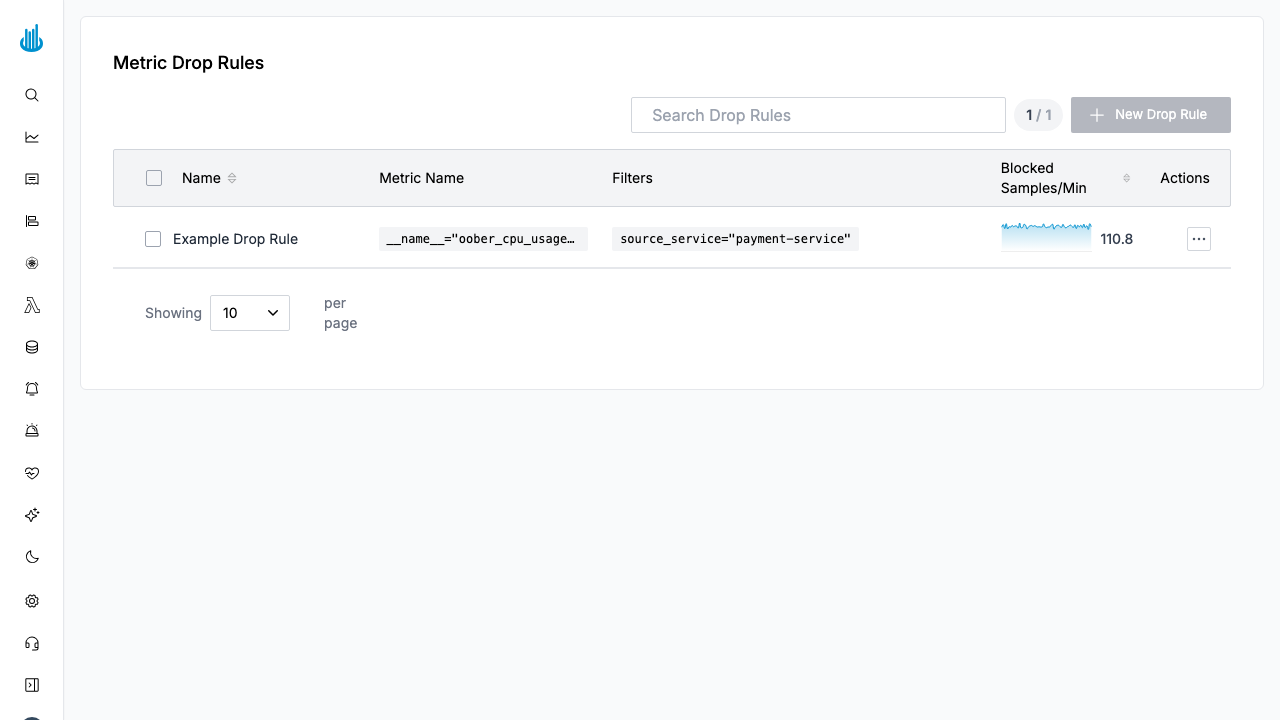
Navigate to Metrics → Drop Rules in the sidebar. The list page shows all existing drop rules. Click Create Drop Rule to add a new rule.
Drop Rules Table
| Column | Description |
|---|---|
| Name | Human-readable rule name. Click to open the rule editor. |
| Metric Name | The __name__ matcher that selects which metrics to drop (e.g. __name__=~"go_gc_.*"). Supports exact match (=), not-equal (!=), regex (=~), and negative regex (!~). |
| Filters | Optional label matchers that further restrict which series are dropped (e.g. job="unused-exporter"). |
| Blocked Samples/Min | A sparkline trend plus the average number of samples per minute being blocked by this rule over the last hour. |
| Actions | Context menu with Edit, Clone, and Delete actions. |
You can select multiple rules with the checkboxes for bulk deletion. The search bar filters rules by name.
Creating a Drop Rule
- Click Create Drop Rule on the list page.
- Rule name — Give the rule a descriptive name (e.g. "Drop unused go_gc metrics").
- Metric name matcher — Configure the
__name__label matcher:- Match type —
=(exact),!=,=~(regex), or!~(negative regex). - Value — The metric name or pattern to match.
- Match type —
- Additional filters (optional) — Add label matchers to scope the rule further. For example, drop a metric only in a specific cluster or namespace.
- Click Save to activate the rule.
Drop rules take effect immediately. Any matching samples received after the rule is created will be discarded. The rule does not delete historical data — it only prevents future ingestion.
Editing and Cloning
- Edit — Click the rule name or choose Edit from the context menu to modify the matchers.
- Clone — Choose Clone from the context menu to create a copy of the rule, which you can then modify before saving.
Common Use Cases
Drop all metrics from a specific exporter
Set the metric name to =~ with a prefix pattern like
cadvisor_.* and optionally add a filter for
job="cadvisor".
Drop a single high-cardinality metric
Set the metric name to = with the exact metric name,
such as http_request_duration_seconds_bucket.
Drop metrics only from non-production
Set the metric name as desired, then add a filter like
env!="production" to keep production data intact.
Best Practices
- Audit with Metrics Analyzer first — Use the Metrics Analyzer to confirm the metric is unused in dashboards and alerts before dropping it.
- Start with regex — If you are unsure of the exact
metric names, use a regex matcher (
=~) to catch related metrics. - Monitor the "Blocked Samples/Min" column — After creating a rule, check back to confirm it is matching the expected volume.
- Name rules descriptively — Include the metric name or purpose so the team can understand each rule at a glance.
Related Pages
- Metrics Analyzer — Identify high-cardinality and unused metrics.
- Metrics Explore — Query metrics with PromQL.
Support
If you need assistance or have any questions, please reach out to us through:
- Email at [email protected]