Anomaly Alerting
Anomaly Alerting lets you configure notification policies for anomalies detected by Oodle's anomaly detection system. When anomalies are detected in your logs or metrics, alerts are sent to the notification channels you configure.
Getting Started
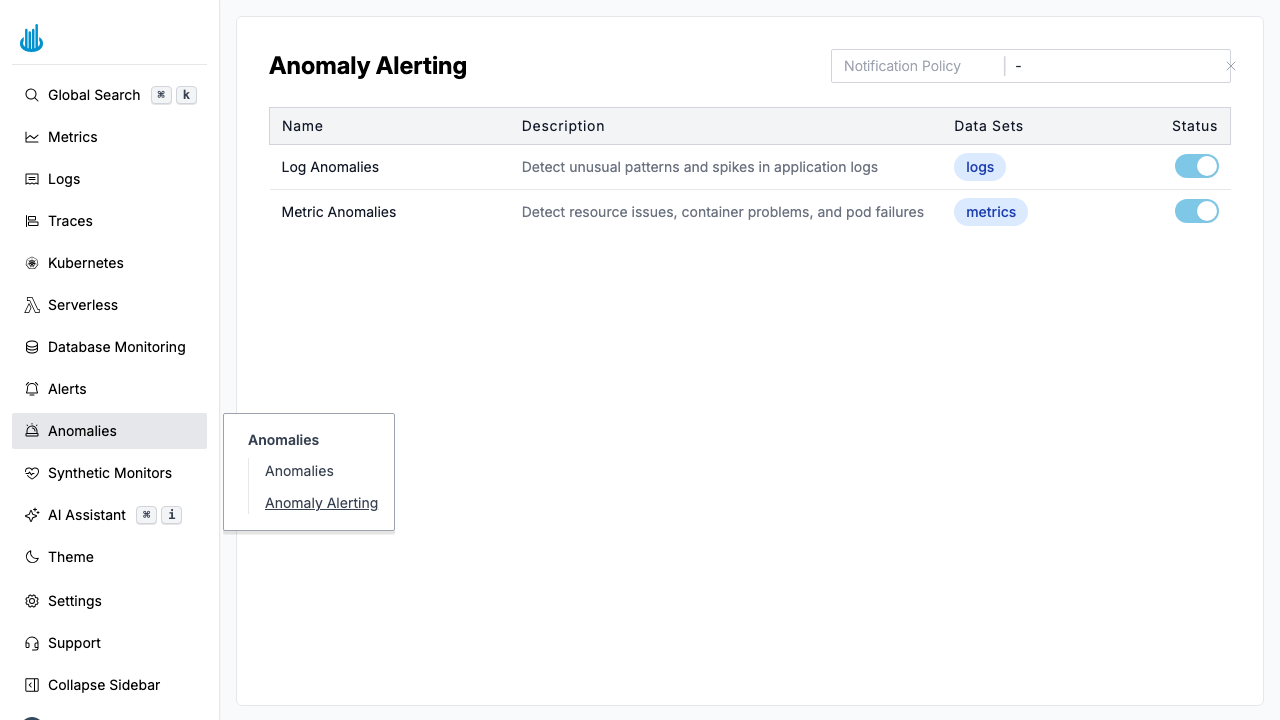
Navigate to Anomalies → Anomaly Alerting in the sidebar. The page shows the available anomaly detection modules and their status.
Detectors Table
The page displays a table of all anomaly detectors:
| Column | Description |
|---|---|
| Name | Detector name (underscores are displayed as spaces). |
| Description | What the detector monitors. |
| Data Sets | The data source the detector operates on (e.g., logs, metrics), shown as badges. |
| Status | Toggle switch to enable or disable the detector. |
Clicking an enabled detector row opens a drawer that shows the alerts generated by that detector, using the same interface as the Alerts page.
Notification Policy
At the top of the page, the Notification Policy label shows the currently assigned policy. Click it to open a drawer where you can create or select an existing notification policy. Notification policies define which channels (Slack, email, PagerDuty, etc.) receive anomaly alerts.
Setting a Notification Policy
- Click the Notification Policy value (or the "-" if none is set).
- In the drawer, select an existing policy or create a new one.
- Click Save and Add Notification Policy.
You can remove the current policy by clicking the delete icon next to the policy name.
Enabling / Disabling Detectors
Toggle the Status switch for each detector:
- Enabled (blue) — The detector actively monitors for anomalies and sends alerts through the configured notification policy. The row becomes clickable to view related alerts.
- Disabled (grey) — The detector is paused and does not generate alerts. The row is not clickable.
Toggling a detector requires edit permissions. Users without edit access will see disabled switches.
How It Works
- Oodle continuously analyzes incoming logs and metrics using machine learning models.
- When a pattern deviates significantly from the learned baseline, an anomaly is detected.
- If the corresponding module is enabled and a notification policy is configured, an alert is sent.
- Detected anomalies are also visible in the Anomaly Detection dashboard.
Best Practices
- Enable both modules for comprehensive coverage across logs and metrics.
- Set up a dedicated notification channel for anomaly alerts to avoid mixing them with other alert types.
- Review anomalies regularly on the Anomaly Detection dashboard, even if alerts are configured — not all anomalies may be severe enough to trigger notifications.
- Tune notification policies to avoid alert fatigue. Start broad and narrow down as you learn which anomalies are actionable.
Related Pages
- Anomaly Detection — View and investigate detected anomalies.
- Alerts — Configure alert rules and notification policies.
Support
If you need assistance or have any questions, please reach out to us through:
- Email at [email protected]