Optimizer
The Kubernetes Optimizer analyzes your container resource requests and limits against actual usage, then recommends right-sizing changes. Use it to reduce cloud costs by reclaiming over-allocated memory and CPU.
Getting Started
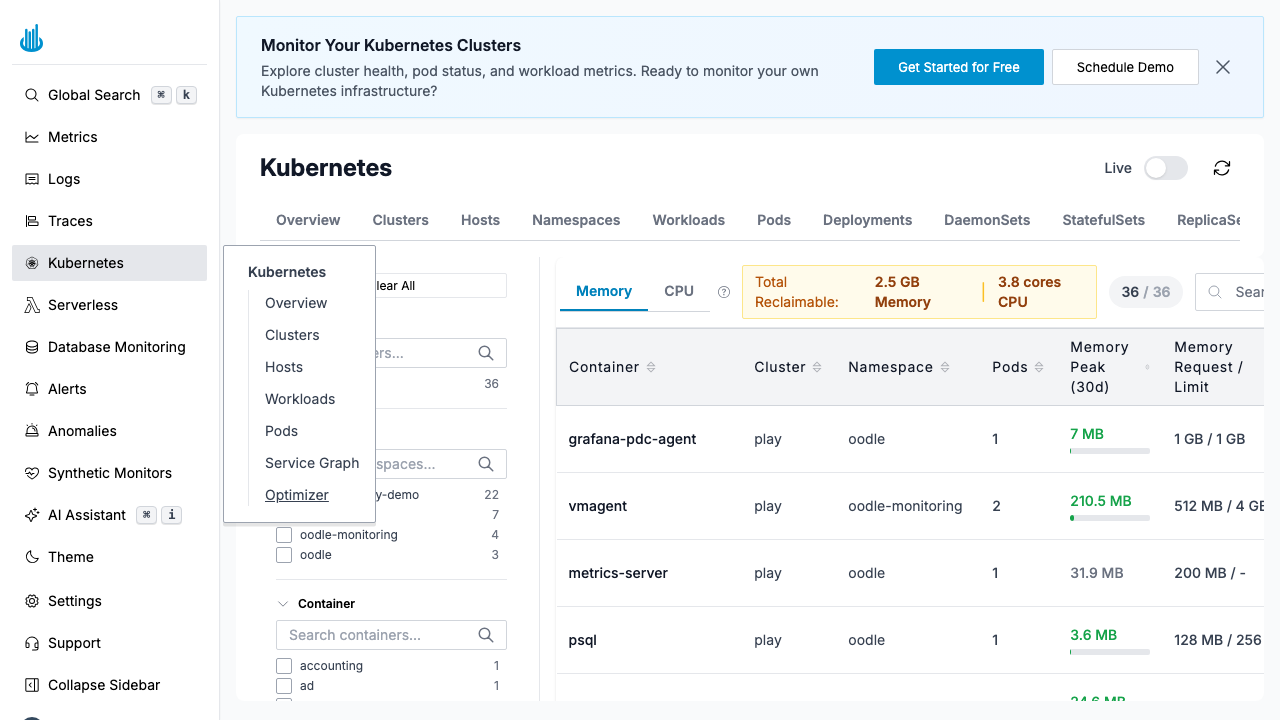
Navigate to Kubernetes → Optimizer in the sidebar. The page displays a table of containers with optimization recommendations.
Optimizer Table
The table toggles between Memory and CPU tabs:
| Column | Description |
|---|---|
| Container | Container name |
| Cluster | Cluster the container runs in |
| Namespace | Kubernetes namespace |
| Pods | Number of pods running this container |
| Memory Peak (30d) | Peak memory usage over the last 30 days |
| Memory Request / Limit | Current configured request and limit |
Summary Banner
At the top, a summary shows the total reclaimable resources:
- Total Reclaimable — Aggregate memory or CPU that can be saved.
- Memory — Total reclaimable memory in GB.
- CPU — Total reclaimable CPU in cores.
Filters
Use the left-hand panel to narrow the view:
- Cluster — Filter by cluster.
- Namespace — Filter by namespace.
- Container — Search for a specific container.
How It Works
- Oodle continuously collects resource usage metrics from your clusters.
- The Optimizer compares the peak usage over a 30-day window against the configured requests and limits.
- Containers where requests significantly exceed actual peak usage are flagged as over-provisioned.
- Recommendations are generated to right-size the requests and limits.
Use Cases
- Cost optimization — Identify containers requesting far more memory or CPU than they actually use.
- Capacity planning — Understand real resource consumption patterns to plan future scaling.
- Right-sizing — Set requests and limits based on observed peak usage rather than guesswork.
Best Practices
- Review the 30-day peak before downsizing — Short-lived spikes may not appear in shorter windows.
- Apply changes gradually — Adjust one namespace or workload at a time and monitor for issues.
- Leave headroom — Do not set limits exactly at peak; add a safety margin (e.g. 20%) to handle load variations.
Support
If you need assistance or have any questions, please reach out to us through:
- Email at [email protected]