Claude Code Integration
Claude Code is Anthropic's AI-powered coding assistant. By integrating Oodle with Claude Code, you can query your observability data directly from the AI assistant while coding.
Prerequisites
- Claude Code installed on your machine
- An active Oodle instance
- Oodle API key (Admin, Editor, or Viewer)
Configuration
Step 1: Get Your API Key
- Log in to your Oodle instance
- Navigate to Settings → Integrations
- Find the Claude Code (MCP) integration card
- Copy the command from the configuration
Step 2: Configure Claude Code
- Run the following command in your terminal to add Oodle as an MCP server:
claude mcp add --transport http --scope user oodle-ai \
  https://YOUR_DEPLOYMENT.oodle.ai/mcp/v1 \
  --header "X-API-KEY: YOUR_API_KEY"
The --scope user flag makes the server available across every project on
your machine. Omit it to register the server only in the current project.
Replace:
YOUR_DEPLOYMENTwith your Oodle deployment domainYOUR_API_KEYwith your Oodle API key
You can copy the exact command from the Claude Code (MCP) integration card in your Oodle instance settings. It includes your API key pre-filled.
Step 3: Restart Claude Code
After adding the MCP server, restart Claude Code for the changes to take effect.
OAuth Configuration (Alternative)
Instead of using an API key, you can authenticate via OAuth. This uses the standard MCP OAuth flow built into Claude Code:
claude mcp add --transport http --scope user \
  --client-id YOUR_CLIENT_ID --callback-port 9400 \
  oodle-ai https://YOUR_DEPLOYMENT.oodle.ai/mcp/v1
After adding the server, run /mcp in Claude Code and follow the browser
login flow to complete authentication. The OAuth token is stored securely
in your system keychain.
Configuration using Integration tile
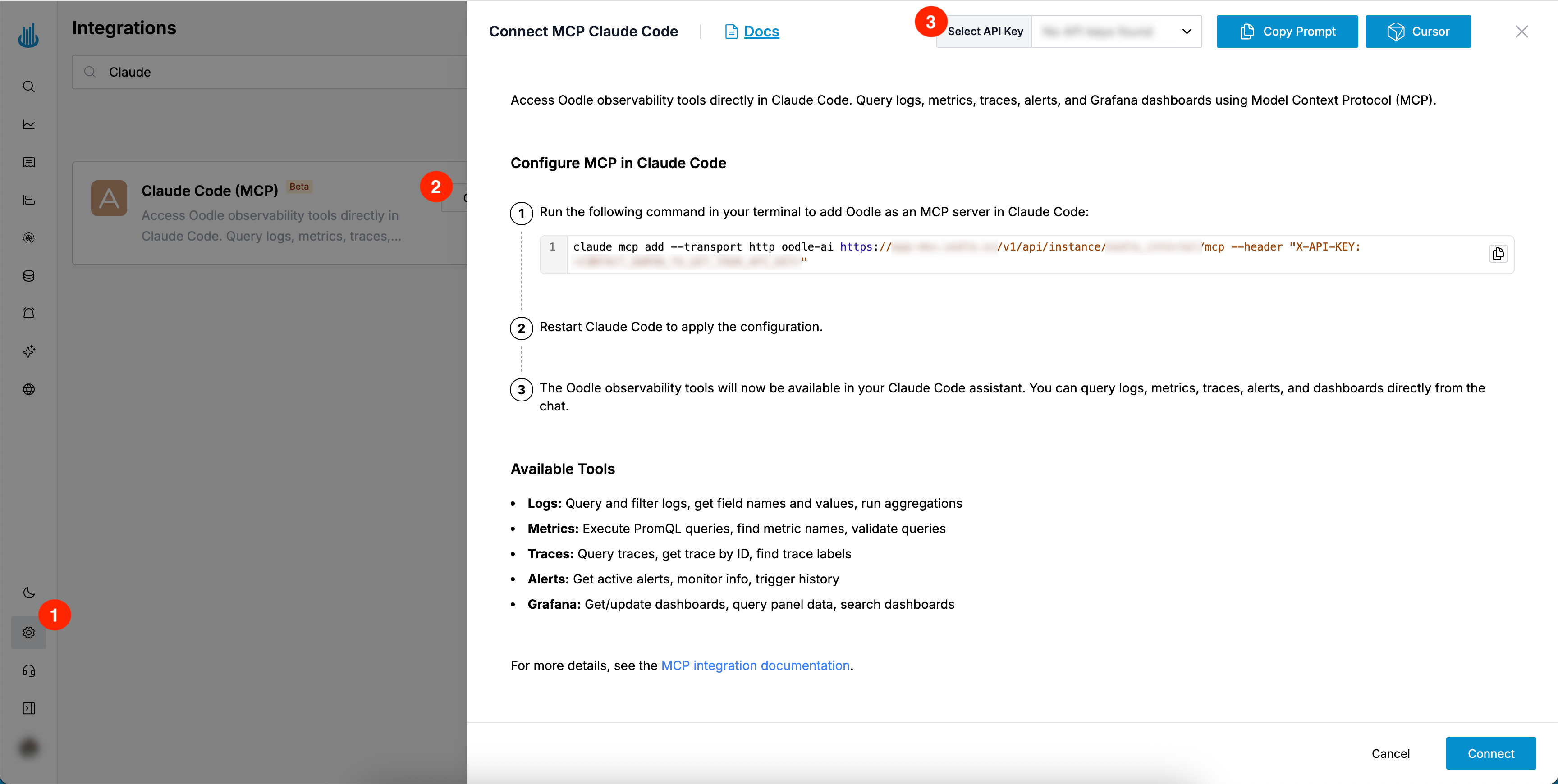
You can find the required Claude Code configuration by doing the following:
- Login to the Oodle UI, then navigate to the Integrations page
- Click on the Claude Code tile
- Choose an appropriate API key from the list on top of the drawer
Follow the steps specified in the drawer to integrate Oodle into your Claude Code
Usage
Once configured, you can query your observability data directly in Claude Code's AI assistant. Here are some example queries:
Query Logs
Show me error logs from the last hour
What are the most common error messages in the auth-service?
Find all logs containing "timeout" from yesterday
Query Metrics
What's the current CPU usage across all services?
Show me the request rate for the API service over the last 24 hours
Is there any metric that shows memory spikes?
Query Traces
Show me slow traces from the checkout service
Find traces that took longer than 5 seconds
Get the trace with ID abc123xyz
Check Alerts
Are there any active alerts right now?
Show me alerts that fired in the last 6 hours
What monitors are configured for the database service?
Query Dashboards
Show me the dashboard for the API service
What's the current value of the "Request Rate" panel?
Find all dashboards related to Kubernetes
Available Tools
The Oodle MCP server provides comprehensive observability tools across the following categories:
Logs
Query and filter logs with flexible time ranges and field-based filtering. Discover available fields and run aggregations to analyze log patterns.
Metrics
Execute PromQL queries to access your metrics data. Search for metrics, explore labels, and validate queries.
Traces
Search distributed traces by service, operation, or custom tags. Retrieve specific trace details and explore available trace attributes.
Alerts
Access active alerts, view monitor configurations, and check historical trigger data to understand your alerting landscape.
Grafana
Interact with Grafana dashboards programmatically. Search, retrieve, update dashboards, and query panel data directly. Dashboard write operations (save/update) require an Editor or Admin API key.
RUM (Real User Monitoring)
Query user sessions, browse session events, and investigate frontend issues and errors reported by the RUM SDK.
Integrations
Discover available integrations and retrieve setup specifications for onboarding new data sources.
Filtering Tools
Tool Discovery
By default, the server lists only the most used tools: logs, metrics, traces, active alerts, monitors, and skills. It also lists three discovery tools:
search_toolsfinds the other tools, such as dashboards, RUM, database monitoring, profiles, GenAI, and alert management tools. It returns their input schemas.list_toolslists all tools that you can use, grouped by toolset. Give it a toolset to get the input schemas of the tools in that toolset.call_toolruns a tool thatsearch_toolsorlist_toolsfound.
A short tool list uses fewer tokens on each request to the AI assistant. All tools stay available through search.
To list all tools instead, append discovery=full to the MCP URL:
https://YOUR_DEPLOYMENT.oodle.ai/mcp/v1?discovery=full
Filtering Tools by Category
To limit the server to specific tool categories, append the toolsets query
parameter to the MCP URL. A connection with toolsets lists all tools in
those toolsets:
https://YOUR_DEPLOYMENT.oodle.ai/mcp/v1?toolsets=logs,metrics
Available toolsets:
| Toolset | Description |
|---|---|
logs | Log querying, filtering, field discovery, and aggregations |
metrics | PromQL queries, metric/label discovery, query validation |
traces | Trace search, retrieval, and label exploration |
alerts | Active alerts, monitors, trigger history, anomalies |
grafana | Dashboard search, retrieval, and management |
rum | Real User Monitoring sessions, issues, and errors |
dbm | Database monitoring samples, activity, and explain plans |
profiles | Continuous profiling types, profiles, and flame graphs |
audit | Audit log events (Admin role only) |
utils | Documentation search |
integrations | Integration discovery and setup specifications |
drop_rules | Usage by source, log patterns, metric drop rules, log blocks, and trace sampling rules |
genai | Query AI-agent data and manage prompts, datasets, evaluations, and experiments |
skills | List skills and load their instructions and reference files |
Specify multiple toolsets as a comma-separated list. For example, to expose only logs and metrics tools:
?toolsets=logs,metrics
To select GenAI tools, use ?toolsets=genai. Combine it with other toolsets
as needed, for example, ?toolsets=genai,metrics.
Your role controls access to tools that change data. Editor and Admin roles
can use these tools. To include skill tools in a filtered connection, add
skills, for example, ?toolsets=genai,skills.
Limiting toolsets reduces the number of tools exposed to the AI assistant, which can improve response quality by reducing context noise when you only need a subset of capabilities.
Troubleshooting
Tools not showing up in Claude Code
- Verify the MCP server was added successfully by running:
claude mcp list - Check that the API key is valid and has not expired
- Ensure Claude Code was fully restarted after adding the MCP server
- Check Claude Code's logs for any MCP-related errors
Authentication errors
- Verify your API key is correct
- Ensure your API key has not expired
- Try regenerating your API key from the Oodle UI
Tool execution errors
- Verify your Oodle instance is accessible
- Check that your API key role has access to the requested tool — Viewer keys cannot call write tools (e.g., save/update Grafana dashboards)
- Ensure your query parameters are valid (e.g., valid time ranges)
Connection refused
- Check your internet connection
- Verify the Oodle API endpoint URL is correct
- Ensure no firewall or proxy is blocking the connection
Best Practices
- Be specific: Provide clear context in your queries (time ranges, service names, etc.)
- Start broad: Begin with general queries and narrow down as needed
- Use natural language: The AI assistant understands context, no need for exact syntax
- Combine tools: Ask questions that might require multiple tools (e.g., "Show me logs and metrics for errors")
- Iterate: If results aren't what you expected, refine your query with more context
Security
- API keys are stored locally in Claude Code's configuration
- All communication is over HTTPS
- API keys can be rotated from the Oodle UI at any time
- Each API key is scoped to a specific Oodle instance
Support
If you need assistance or have any questions, please reach out to us through:
- Email at [email protected]