Logs Security
Oodle provides layered security controls for logs: user roles govern what actions a person can perform, API keys grant programmatic access scoped to a role, and access restrictions let admins limit which log data individual users can see.
User Roles
Every Oodle user is assigned one of three interactive roles. The role determines what the user can do across the platform, including logs.
| Capability | Admin | Editor | Viewer |
|---|---|---|---|
| View logs and dashboards | ✅ | ✅ | ✅ |
| Create & edit dashboards, alerts | ✅ | ✅ | ❌ |
| Manage log pipeline (transforms, blocks) | ✅ | ✅ | ❌ |
| Create & manage API keys | ✅ | ❌ | ❌ |
| Manage users & access restrictions | ✅ | ❌ | ❌ |
| Configure organization settings | ✅ | ❌ | ❌ |
- Admin — Full access to every feature and setting. Admins can invite users, manage roles, create API keys, and configure access restrictions for logs.
- Editor — Can create and modify dashboards, alerts, log transforms, and log blocks. Cannot manage users or organization settings.
- Viewer — Read-only access to dashboards, log explorer, and alerts. Cannot create or modify any resources.
For the complete permissions matrix and details on authentication methods, see User Management.
API Keys
API keys provide programmatic access to Oodle. Each key is scoped to a role that controls what the key can do.
API Key Roles
When creating an API key, you select one of four roles. The first three match the interactive user roles above; the fourth is a special machine-only role for data ingestion.
| Role | Permissions |
|---|---|
| Admin | MCP Server Access, API Write, API Read, Data Ingestion |
| Editor | MCP Server Access, API Write, API Read |
| Viewer | MCP Server Access (read-only), API Read |
| Data Ingestion | Data Ingestion only |
Who Can Create API Keys
Only users with the Admin role can view, create, and manage API keys. The API Keys page is not accessible to Editors or Viewers, and the corresponding capabilities are not available to them.
Choosing the Right Role
- Data Ingestion — Use for agents and collectors that only push logs into Oodle (Vector, Fluent Bit, OpenTelemetry Collector, etc.). This is write-only; the key cannot query or read any data back.
- Viewer — Use for tools that need to read logs and other signals, but should not modify anything (e.g., an AI agent querying Oodle).
- Editor — Use for automation that creates or updates dashboards and alerts programmatically.
- Admin — Use sparingly, only when the caller needs to manage users or organization settings.
For more on API key roles, see API Keys and Roles.
Follow the principle of least privilege: always choose the most restrictive role that still allows the key to perform its intended function.
Fine-Grained Access Restrictions for Logs
Beyond the broad role system, Oodle supports access restrictions that limit which log data a user can see. This is useful when different teams within the same organization should only access their own logs — for example, restricting a team to logs from their namespace or service.
How Access Restrictions Work
-
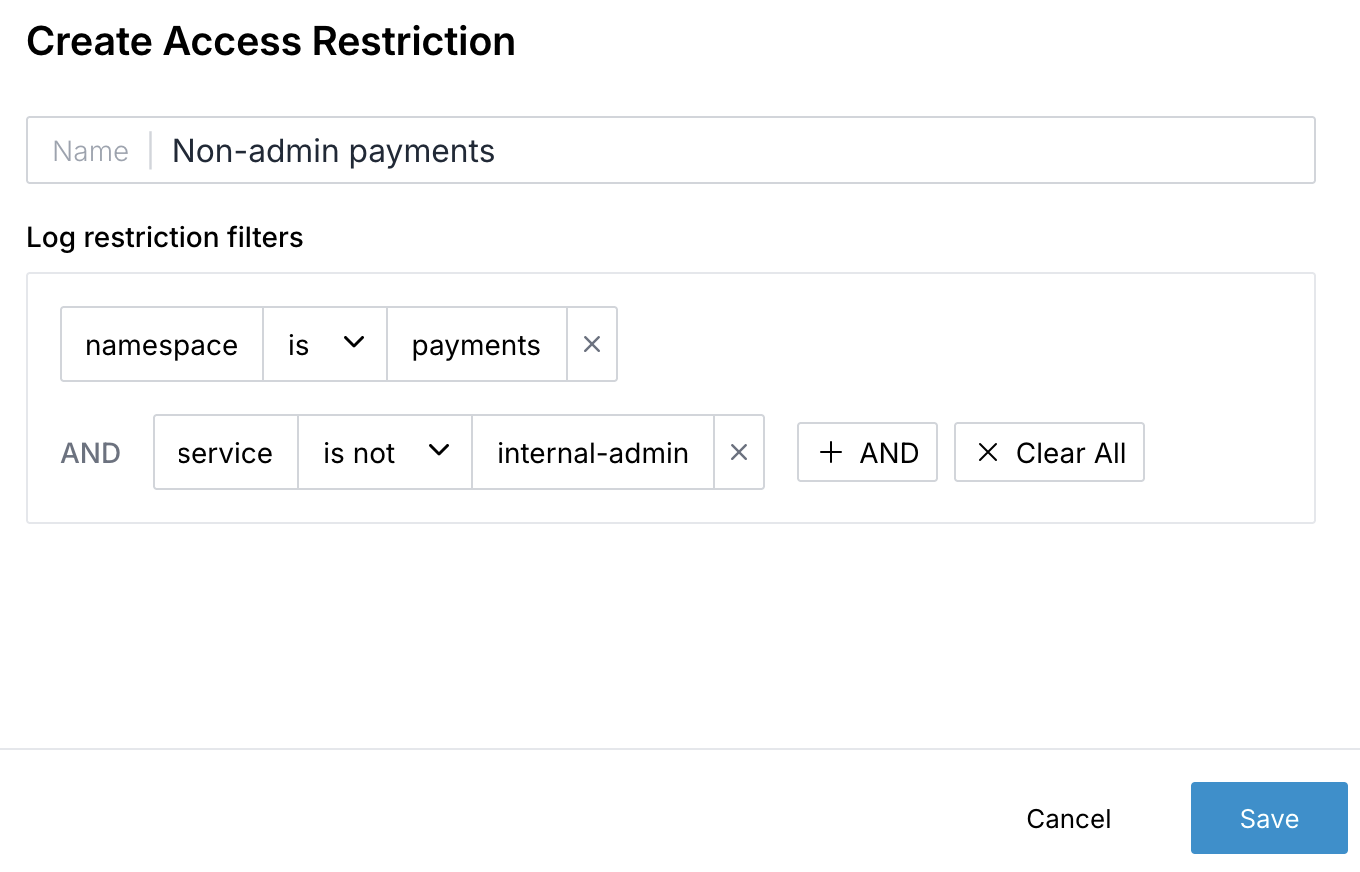
An Admin creates an access restriction — a named set of log filters.
-
Each filter is a field-level rule using either is (equals) or is not (not equals) operators. For example:
namespaceispayments— the user can only see logs wherenamespaceequalspayments.serviceis notinternal-admin— the user cannot see logs from theinternal-adminservice.
-
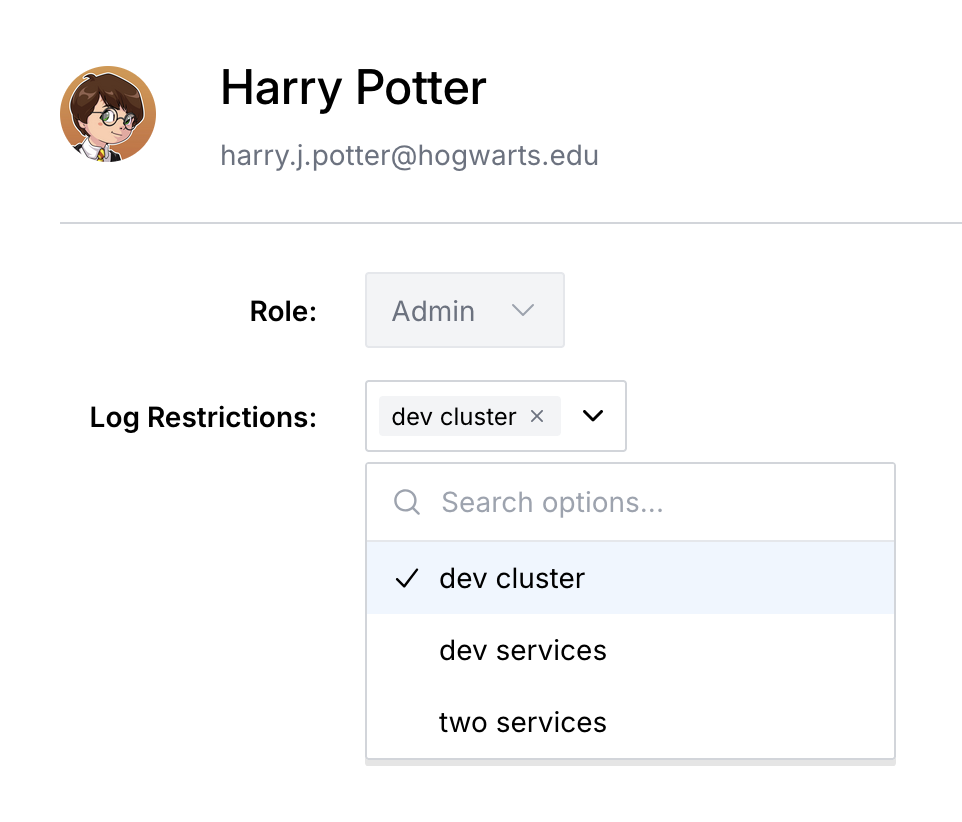
The Admin assigns the access restriction to one or more users by visiting the Users tab, clicking on the user's name, and assigning log restrictions in the User Details modal.
-
When those users query logs — in the explorer, dashboards, or via API — the filters are automatically applied, hiding any log data that that should be hidden.
Managing Access Restrictions
Access restrictions are managed on the Users page under the Access Restrictions tab (ap1, us1). From there, Admins can:
- Create a new access restriction (ap1, us1) with a name and one or more log filters.
- Edit an existing restriction to add, change, or remove filters.
- Delete a restriction that is no longer needed.
- Assign restrictions to individual users from the user details drawer.
A user can have multiple access restrictions assigned. When multiple restrictions are assigned, the user can see logs that match any of the assigned restrictions.
Example
Suppose your organization has two teams — Payments and Platform — each with their own Kubernetes namespace. You can create two access restrictions:
| Restriction Name | Filter |
|---|---|
| Payments Logs | namespace is payments |
| Platform Logs | namespace is platform |
Assign "Payments Logs" to members of the Payments team and "Platform Logs" to members of the Platform team. Each team will only see logs from their own namespace.
If a user has both restrictions assigned, they
can see logs matching either restriction — in
this case, logs from both the payments and
platform namespaces. Multiple restrictions are
combined with OR logic, broadening the user's
access.
Access restrictions apply to log queries only. They do not restrict access to metrics, traces, or dashboards. Users without any access restrictions assigned can see all logs.
Best Practices
- Assign the narrowest role possible. Give users Viewer access unless they need to create or edit resources. Reserve Admin for people who manage the organization.
- Use Data Ingestion keys for collectors. Never use an Admin or Editor key for agents that only push telemetry.
- Rotate API keys periodically. Delete unused keys and create new ones on a regular schedule.
Support
If you need assistance or have any questions, please reach out to us through:
- Email at [email protected]