Alertmanager Alerts
Oodle supports importing your existing Alertmanager alert rules and notification routes, making migration from Prometheus/Alertmanager seamless.
Import Methods
There are two ways to import alerts from Alertmanager into Oodle:
- Upload YAML files - Upload your
prometheus.yamlandalertmanager.yamlconfiguration files directly - Scrape from Prometheus - Connect to your running Prometheus and Alertmanager instances to scrape alerts directly
Method 1: Import from YAML Files
This method allows you to upload your Prometheus and Alertmanager configuration files directly to Oodle. This approach doesn't require network connectivity between Oodle and your Prometheus/Alertmanager instances.
Steps
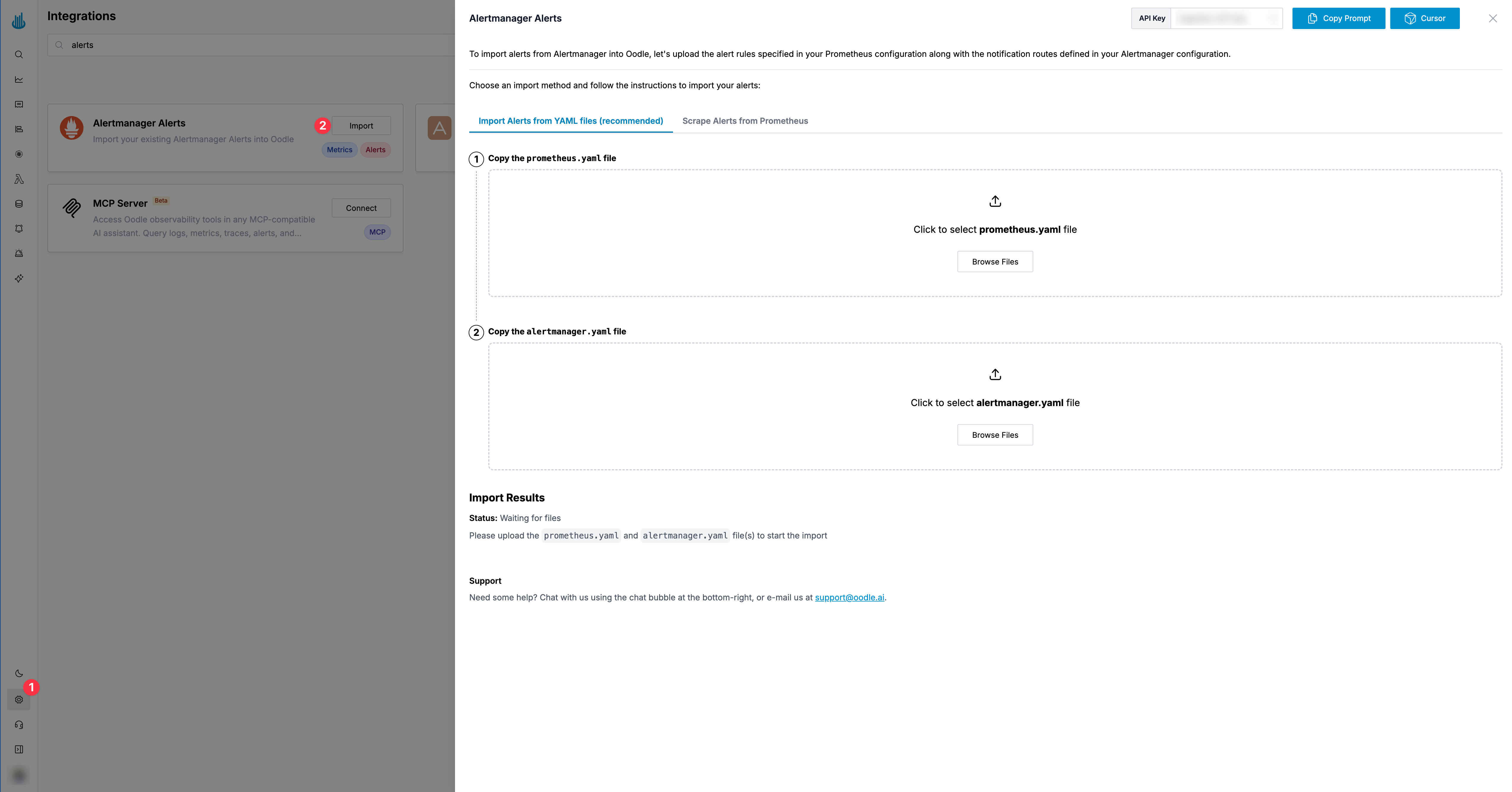
- Login to the Oodle UI, then navigate to the Integrations page
- Click on the Alertmanager Alerts tile
- Select the Import Alerts from YAML files tab
- Upload your
prometheus.yamlfile containing your alert rules - Upload your
alertmanager.yamlfile containing your notification routes - The import will start automatically once both files are uploaded
What Gets Imported
- Alert Rules: All alert rules defined in your Prometheus configuration
- Notification Routes: Routing rules from your Alertmanager configuration
- Notification Policies: Receiver configurations mapped to Oodle notifiers
Method 2: Scrape Alerts from Prometheus
This method connects directly to your Prometheus and Alertmanager instances to scrape the alert configurations. This requires network connectivity between the migration tool and your instances.
Prerequisites
- Docker installed on your machine (Install Docker)
- Network access to your Prometheus and Alertmanager instances
Steps
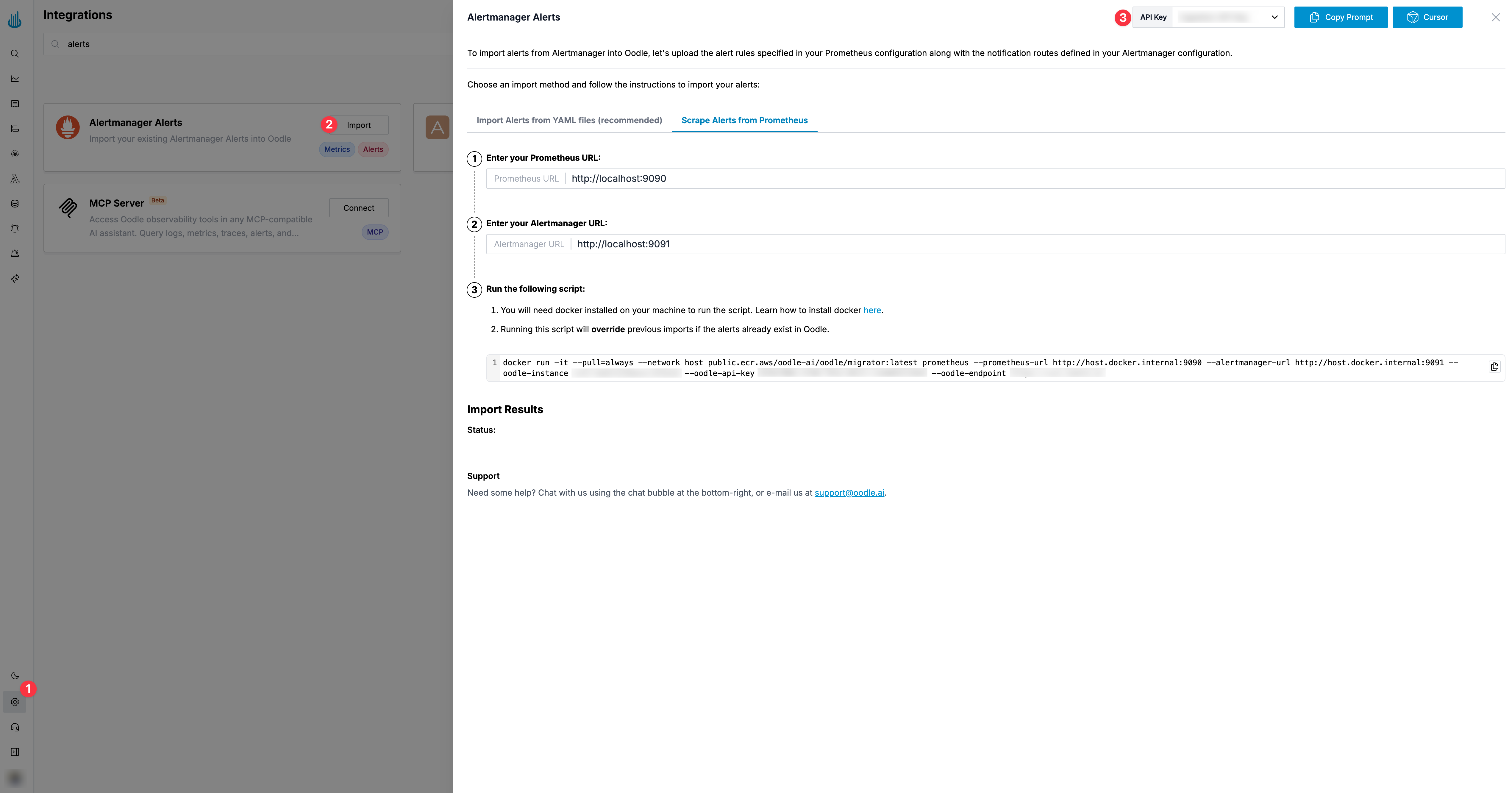
- Login to the Oodle UI, then navigate to the Integrations page
- Search for Alertmanager Alerts and click Import
- Choose an appropriate API key from the dropdown at the top of the drawer
- Select the Scrape Alerts from Prometheus tab
- Enter your Prometheus URL (e.g.,
http://localhost:9090) - Enter your Alertmanager URL (e.g.,
http://localhost:9091) - Copy and run the generated Docker command
Docker Command
The migration tool runs as a Docker container. After entering your Prometheus and Alertmanager URLs, a command will be generated:
docker run -it --pull=always --network host \
  public.ecr.aws/oodle-ai/oodle/migrator:latest prometheus \
  --prometheus-url http://host.docker.internal:9090 \
  --alertmanager-url http://host.docker.internal:9091 \
  --oodle-instance <INSTANCE_ID> \
  --oodle-api-key <API_KEY> \
  --oodle-endpoint <OODLE_ENDPOINT>
When using localhost URLs, they are automatically converted to
host.docker.internal to ensure the Docker container can reach your local
services.
Kubernetes Example
If Prometheus and Alertmanager are running in a Kubernetes cluster, you can use port-forwarding to access them locally:
kubectl port-forward pods/<prometheus-pod-name> 9090 -n <prometheus-namespace>
kubectl port-forward pods/<alertmanager-pod-name> 9093 -n <alertmanager-namespace>
Then use http://localhost:9090 and http://localhost:9093 as the URLs for
Prometheus and Alertmanager respectively.
Import Results
After the import completes, you'll see a status indicating success or failure. The imported alerts will be available in the Alerts section of the Oodle UI.
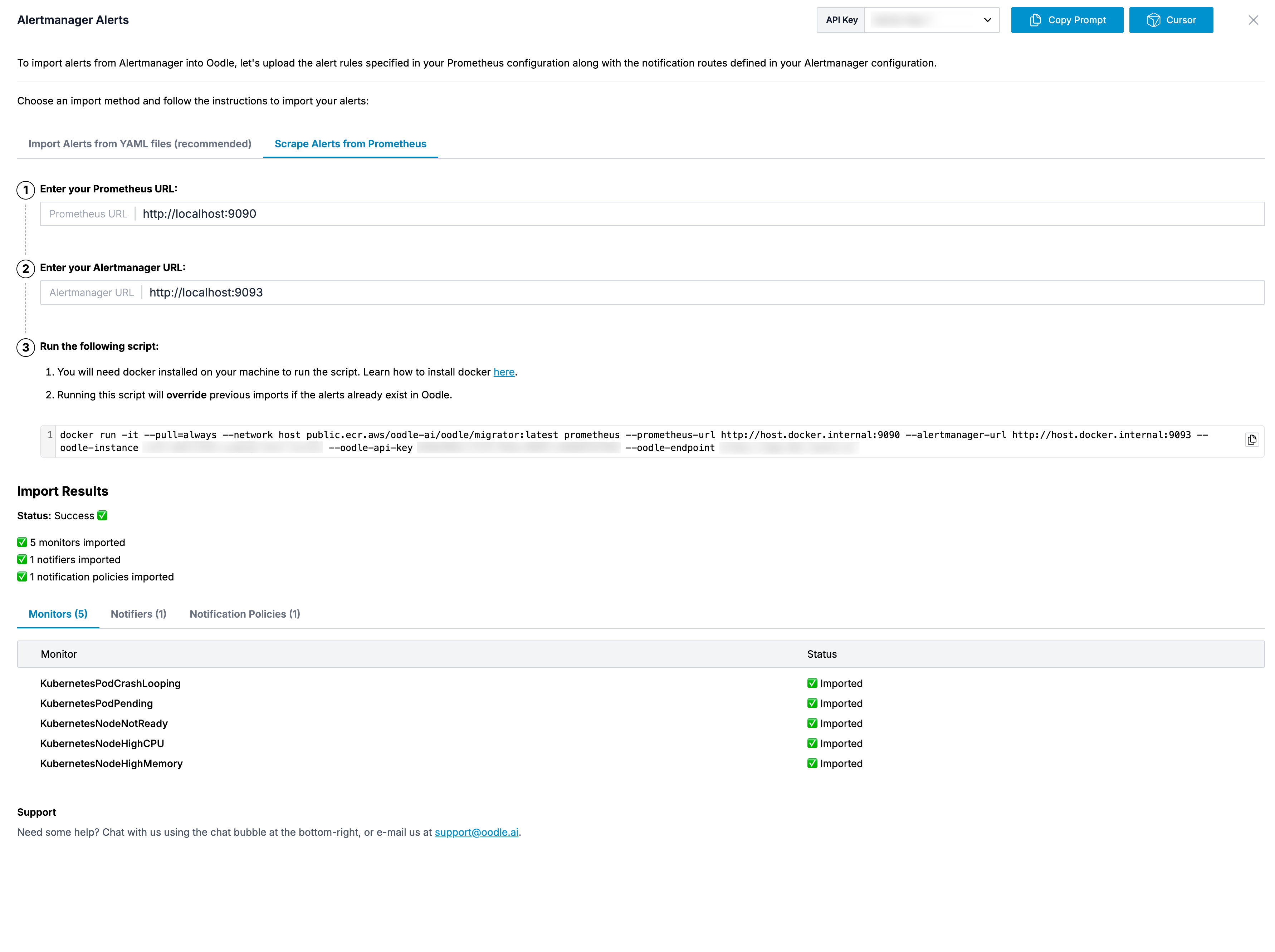
You can manage your imported alerts:
- View all monitors in the Monitors page
- Configure notification policies in Notification Policies
- Set up notifiers in Notifiers
Other Migration Options
Looking to migrate from other platforms? Check out these guides:
- Grafana Migration - Import Dashboards, Alerts, and Datasources from Grafana
Support
If you need assistance or have any questions, please reach out to us through:
- Email at [email protected]