Log Pipeline
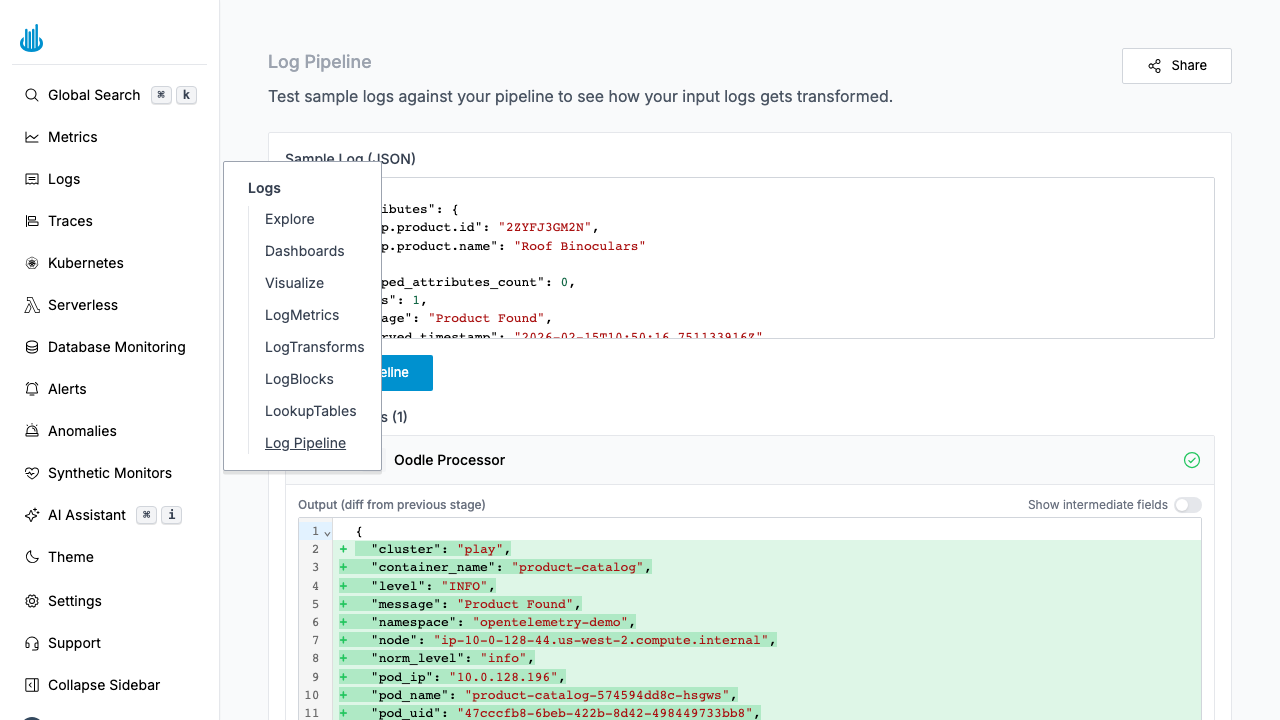
The Log Pipeline page is a testing sandbox that lets you see exactly how your log processing rules transform incoming logs. Paste a sample log, run it through the pipeline, and inspect the output at each stage — all without affecting production data.
Getting Started
Navigate to Logs → Log Pipeline in the sidebar. The page opens with a sample log input area and a visualization of your configured pipeline stages.
How It Works
- Paste a sample log — Enter a JSON log event in the Sample Log text area.
- Click Run Pipeline — The sample is processed through every active pipeline stage (LogTransforms, field extractions, etc.).
- Review output — The result is displayed as a diff, showing fields added, removed, or modified at each stage.
Intermediate Fields
Toggle Show intermediate fields to see the state of the log after each individual processing stage, not just the final output. This is invaluable for debugging multi-stage pipelines.
Pipeline Stages
The pipeline visualization shows each processing stage as a card:
| Stage | Description |
|---|---|
| Oodle Processor | Built-in processing that normalizes fields like norm_level, source_type, and timestamp. |
| LogBlocks | Rules that discard matching log events before storage. See LogBlocks. |
| LogTransforms | User-defined transformations configured in LogTransforms. |
Each stage card shows a green check when the sample passes successfully, or an error indicator if processing fails.
Output Views
Output (diff from previous stage)
Shows what changed relative to the previous pipeline stage. Added fields are highlighted in green, removed fields in red.
Final Output (diff from sample log)
Shows the complete difference between the original input and the final output after all stages have run.
Use Cases
- Debug transforms — Verify that a new LogTransform rule produces the expected output before deploying it.
- Test field extraction — Confirm that regex or JSON parsing rules extract the right values.
- Validate enrichment — Check that Lookup Tables add the expected metadata fields.
- Share pipelines — Use the Share button to generate a link that includes your sample log and pipeline configuration.
Best Practices
- Use real log samples — Copy a log line from Log Explorer to get realistic test data.
- Test edge cases — Try logs with missing fields, unexpected formats, or unicode characters.
- Enable intermediate fields when debugging complex multi-step pipelines to pinpoint which stage introduces an issue.
- Share with teammates — Use the Share button to generate a URL that includes your sample log, making it easy to collaborate on pipeline debugging.
Related Pages
- LogTransforms — Define field extraction and transformation rules.
- LogBlocks — Block unwanted logs from being stored.
- Lookup Tables — Enrich logs with external context data.
Support
If you need assistance or have any questions, please reach out to us through:
- Email at [email protected]