LogBlocks
LogBlocks let you selectively block log events from being ingested and stored. Use them to reduce log volume and costs by filtering out noisy, low-value, or sensitive log lines before they reach storage.
How It Works
- Logs enter the Oodle ingestion pipeline.
- Each log event is evaluated against all active LogBlock rules in the pipeline.
- If the event matches a rule, it is discarded and never stored.
- Events that do not match any rule proceed to storage normally.
LogBlock rules take effect immediately — matching logs are dropped as soon as the rule is created.
Creating a LogBlock
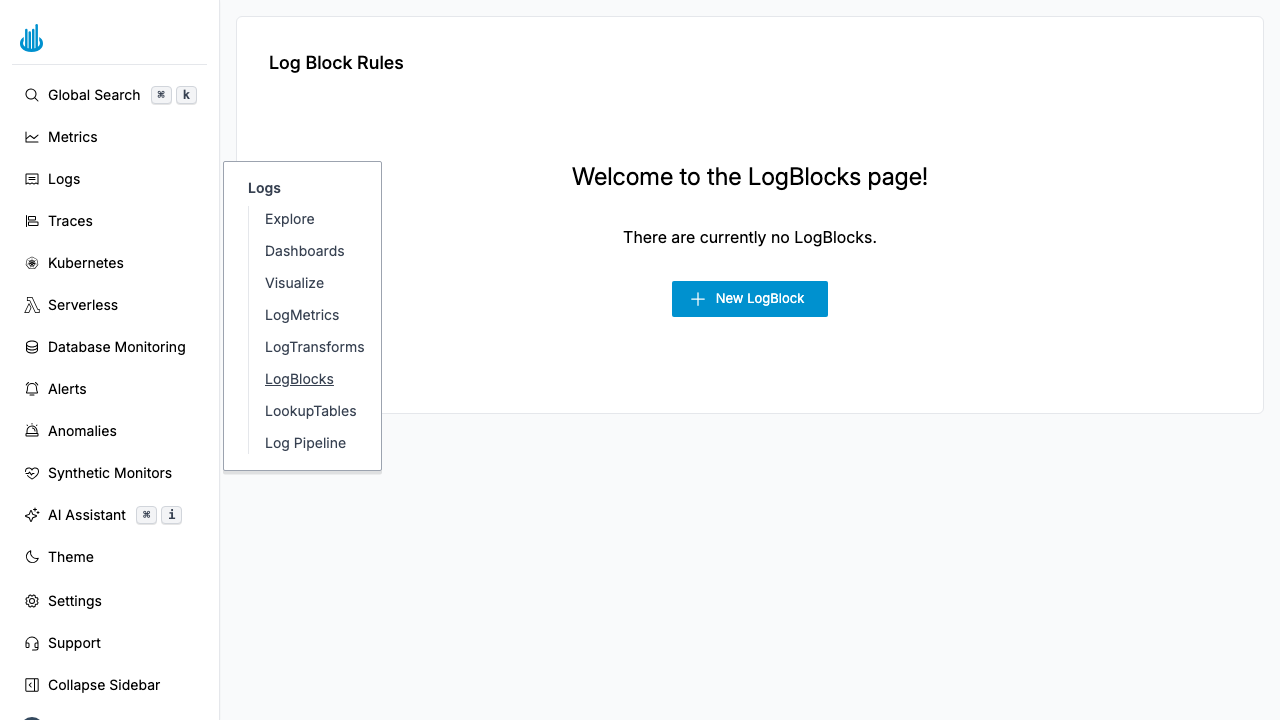
- Navigate to Logs → LogBlocks in the sidebar.
- Click Create LogBlock.
- Fill in the form:
- Name — A descriptive name for the rule (e.g. "Drop debug logs from chatbot").
- Filter — Use the log filter builder to define which logs to block. Filters support conditions like field equals, not equals, contains, regex, etc. You can combine multiple conditions with All (AND) or Any (OR) logic.
- Preview — When available, the preview section shows how the rule fits into the pipeline and displays a sample log that matches the filter so you can confirm the rule targets the right events.
- Click Save to activate the rule.
caution
LogBlock rules are permanent blockers — once a matching log is discarded, it cannot be recovered. Always preview matching logs before saving.
Managing LogBlocks
The LogBlocks list page shows all configured rules:
| Column | Description |
|---|---|
| Name | The rule name. Click to open the editor. |
| Actions | Context menu with Edit, Clone, and Delete options. |
- Search — Use the search bar to filter rules by name.
- Bulk actions — Select multiple rules with checkboxes and delete them in one step.
Use Cases
- Drop debug logs from production services that generate high volume.
- Filter health-check logs from load balancers that add noise without insight.
- Remove sensitive data — Block logs containing PII before they are stored.
- Cost control — Reduce ingested volume to stay within budget.
Best Practices
- Be specific with filters — Overly broad rules can accidentally block important logs.
- Preview before saving — Always review the preview to verify the rule targets the correct logs.
- Combine with LogTransforms — Use LogTransforms to restructure logs and LogBlocks to remove the ones you do not need at all.
- Use descriptive names — Include the target service or log level in the rule name so others can understand it at a glance.
Support
If you need assistance or have any questions, please reach out to us through:
- Email at [email protected]