Amazon S3
Oodle provides seamless integration with Amazon S3 for ingesting logs stored in S3 buckets. This is useful for logs that are written directly to S3, such as ALB access logs, CloudFront logs, or any application logs stored in S3.
The integration uses an SQS queue to receive S3 event notifications when new objects are created. Oodle then reads the log files from S3 and ingests them.
Configuration
Prerequisites
Before setting up the integration, you'll need the following parameters from Oodle:
OodleAWSAccountId: Oodle's AWS account IDExternalId: A unique external ID provided by Oodle for secure cross-account access
Contact the Oodle team to obtain these values.
Step 1: Deploy CloudFormation Stack
Deploy the CloudFormation stack that creates the necessary IAM role and SQS queue for S3 log ingestion.
Use the Quick Create link to create the CloudFormation stack in your AWS account. Be sure to choose the appropriate AWS region where your S3 buckets are located.
You will be asked to provide the following parameters:
| Parameter | Description |
|---|---|
OodleAWSAccountId | Oodle's AWS account ID (provided by Oodle) |
ExternalId | External ID for secure role assumption (provided by Oodle) |
S3BucketPattern1 | First S3 bucket name with optional prefix (required). Example: my-logs-bucket or my-logs-bucket/alb-logs/ |
S3BucketPattern2-5 | Additional S3 bucket names with optional prefixes (optional) |
The CloudFormation stack creates the following resources:
- SQS Queue (
OodleS3NotificationQueue-<stack-name>): Receives S3 event notifications when new log files are created - IAM Role (
OodleIntegrationS3LogIngestion-<stack-name>): Allows Oodle to assume this role to read logs from S3 and receive messages from the SQS queue
Step 2: Share Stack Outputs with Oodle
After the CloudFormation stack is created:
- Navigate to the CloudFormation console
- Select the stack you created (e.g., "OodleS3Logs")
- Click on the Outputs tab
- Share the following values with the Oodle team:
RoleARN: ARN of the IAM roleQueueARN: ARN of the SQS queue
Step 3: Configure S3 Event Notifications
For each S3 bucket containing logs, you need to create an event notification to send messages to the SQS queue when new objects are created.
- Open the S3 console
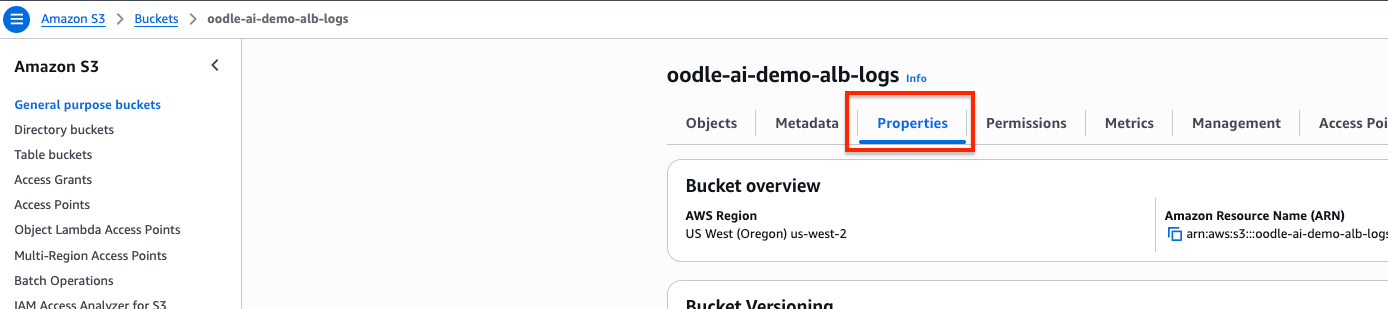
- Select the bucket containing your logs
- Navigate to the Properties tab
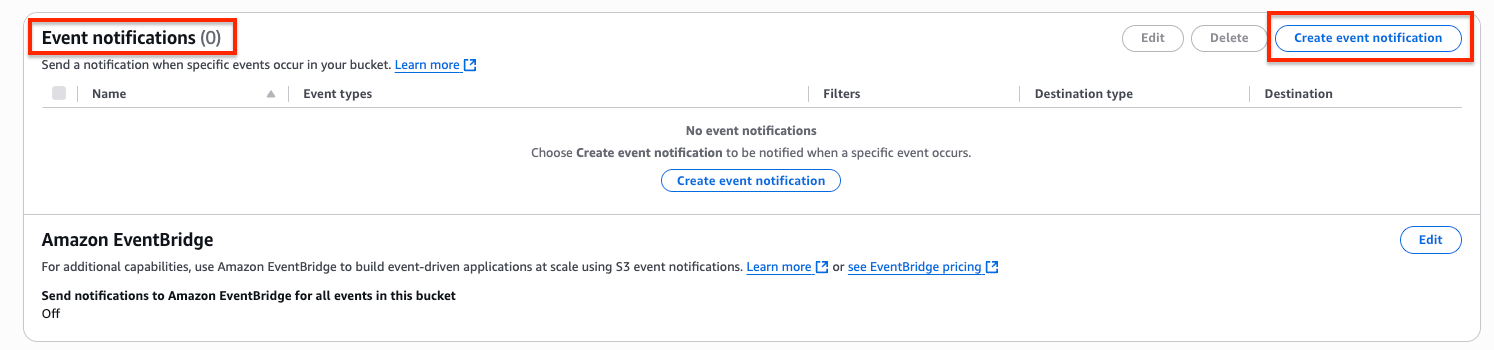
- Scroll to the Event notifications section and click Create event notification
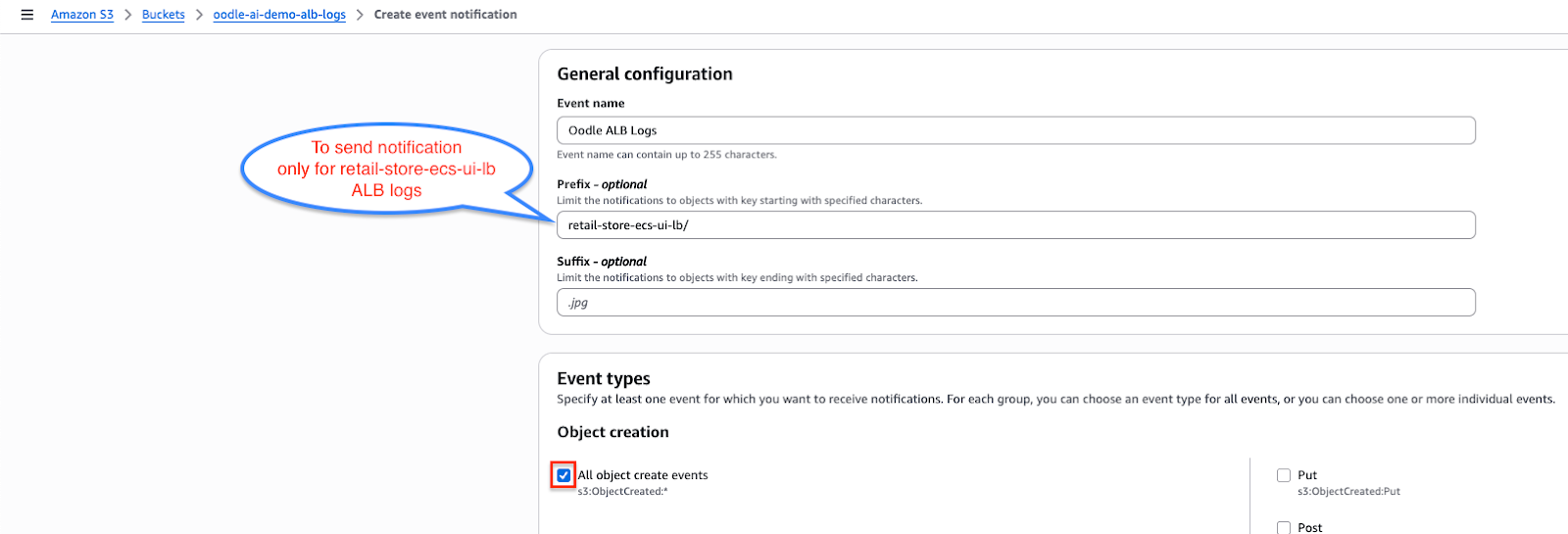
- Configure the notification:
- Event name: Enter a descriptive name (e.g., "Oodle Logs")
- Prefix (optional): Add a path prefix if logs are in a specific directory
- Event types: Select All object create events
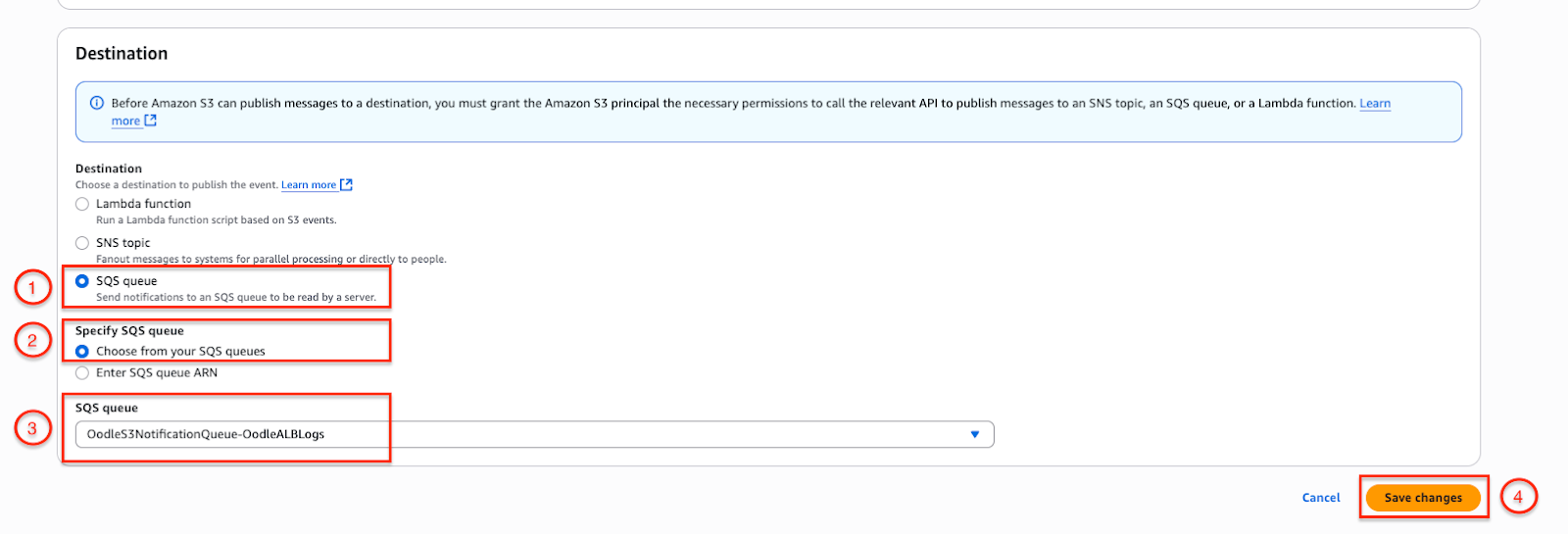
- Destination: Choose SQS queue
- SQS queue: Select Choose from your SQS queues
- Queue: Select
OodleS3NotificationQueue-<stack-name>
- Click Save changes
Repeat these steps for all buckets containing logs you want to ingest.
Step 4: Verify the Integration
To verify that notifications are being sent to the SQS queue:
- Open the SQS console
- Search for
OodleS3NotificationQueue-<stack-name> - Check that Messages available shows a value greater than 0

This confirms that S3 is successfully sending notifications when new log files are created. Once Oodle team configures ingestion pipeline, logs would be visible in Oodle UI.
Support
If you need assistance or have any questions, please reach out to us through:
- Email at [email protected]