TrueFoundry AI Gateway
The TrueFoundry AI Gateway gives your agents one access point to models and MCP servers. Add Oodle to its MCP Gateway, and every agent behind the gateway can query all your telemetry in Oodle.
Prerequisites
- A TrueFoundry tenant with access to the MCP Gateway
- An active Oodle instance
Configuration with OAuth (Recommended)
With OAuth, each user signs in with their own Oodle account, so each agent sees only the data that its user can see. No API key is stored in the gateway.
Get your values
Open Integrations in Oodle and select the TrueFoundry AI Gateway (MCP) tile. The OAuth tab gives the exact values for your deployment, each with a copy button:
| Field | Value |
|---|---|
| URL | https://YOUR_DEPLOYMENT.oodle.ai/mcp/v1 |
| Authorization URL | https://YOUR_AUTH_DOMAIN/authorize |
| Token URL | https://YOUR_AUTH_DOMAIN/oauth/token |
| Client ID | The Oodle OAuth client ID of your deployment |
You can add the server in the TrueFoundry UI or with a YAML spec.
In the TrueFoundry UI
Step 1: Select the server type
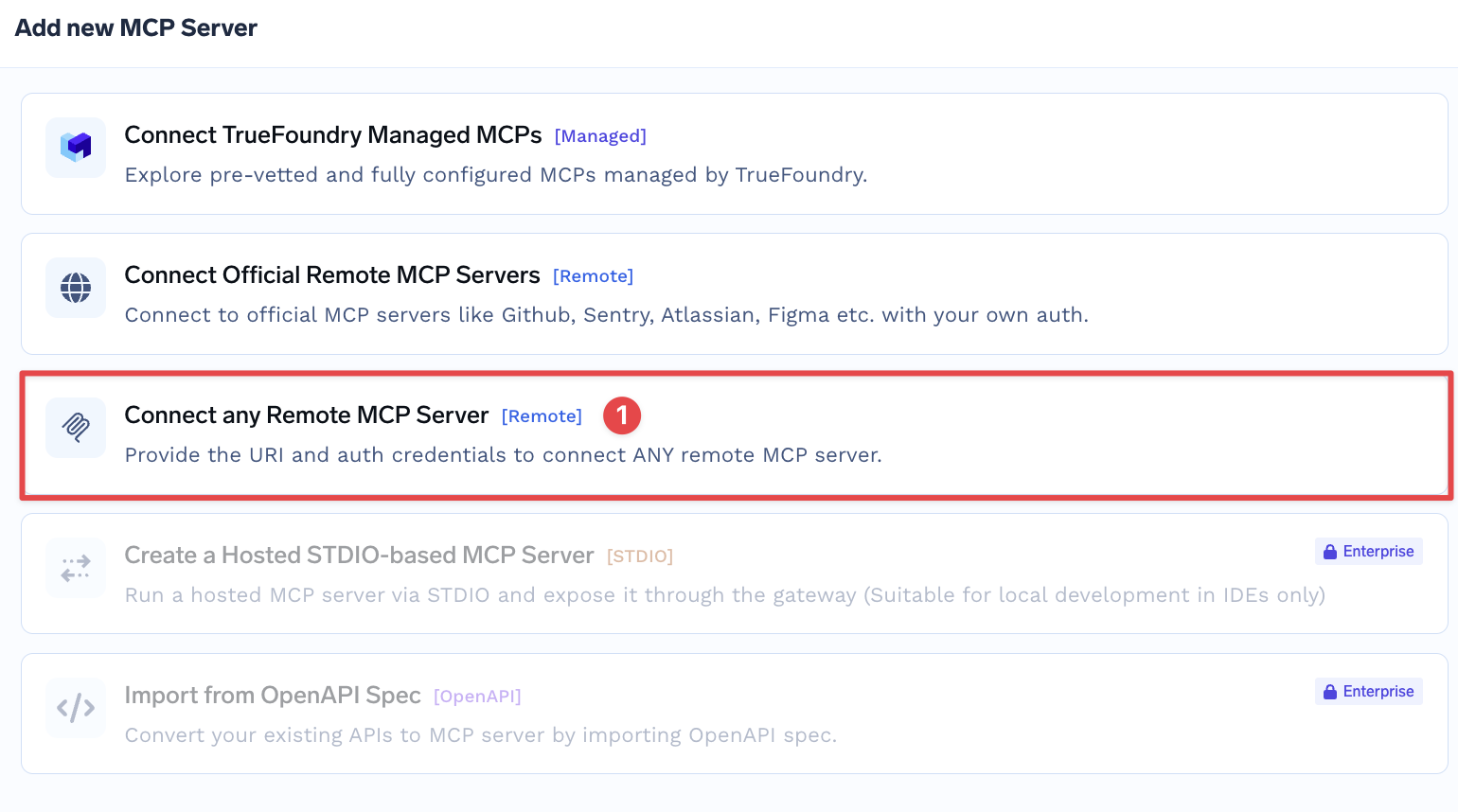
In TrueFoundry, open MCP Gateway, click Add MCP Server, and select Connect any Remote MCP Server.
Step 2: Fill in the form
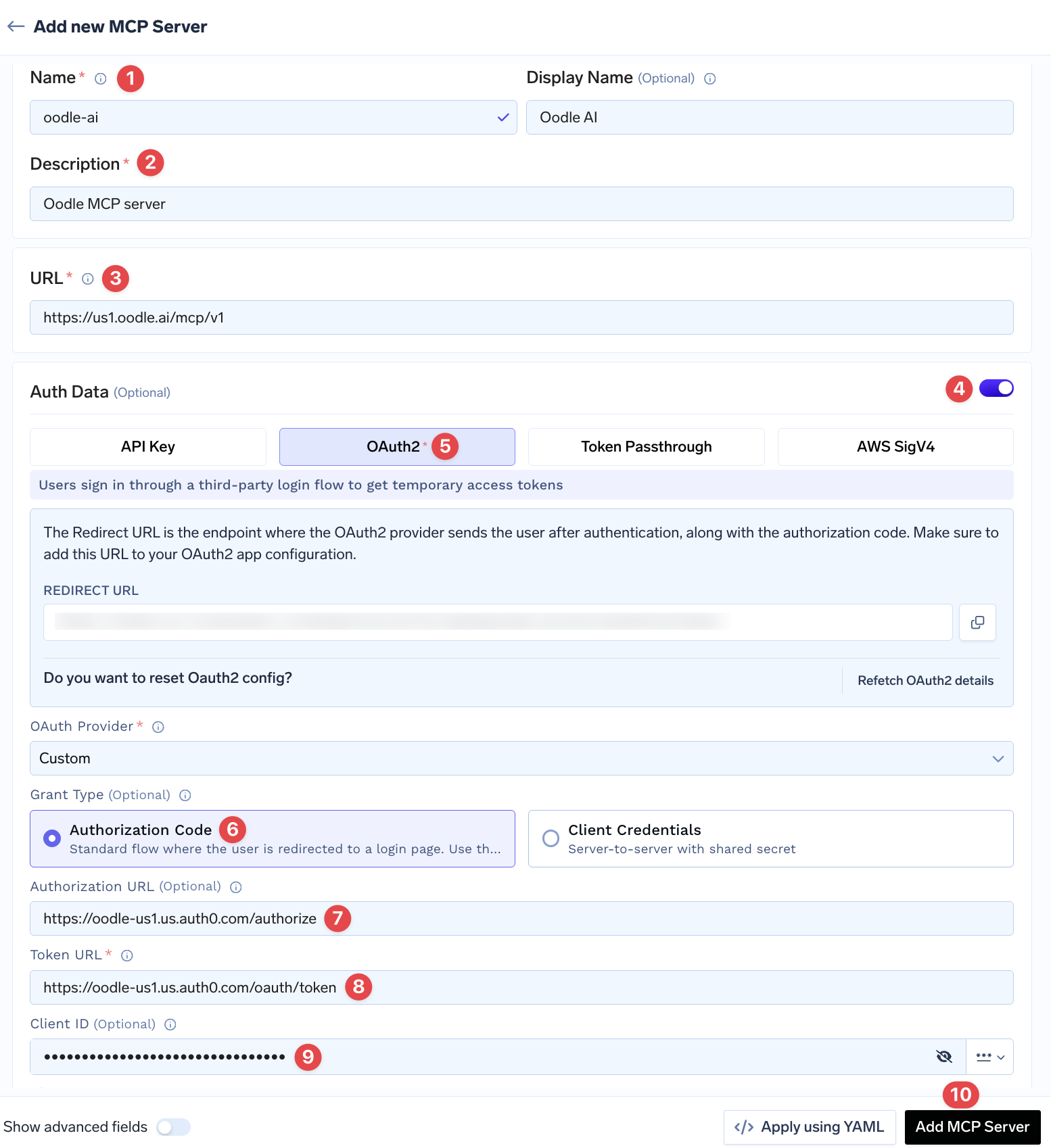
The numbers match the numbers in the screenshot.
- Set Name to
oodle-ai. - Set Description to
Oodle MCP server. - Set URL to the Oodle MCP URL of your deployment.
- Turn on Auth Data.
- Select OAuth2, and set OAuth Provider to Custom.
- Set Grant Type to Authorization Code.
- Set Authorization URL to the value from the tile.
- Set Token URL to the value from the tile.
- Set Client ID to the value from the tile. Leave Client Secret and Registration URL empty, and keep JWT Source as Access Token.
- Click Add MCP Server.
The first time a user calls an Oodle tool, the gateway asks them to sign in to Oodle and select their organization.
Apply using YAML
Use this method to keep the server definition in version control.
Step 1: Set up the TrueFoundry CLI
pip install -U "truefoundry"
tfy login --host https://YOUR_TENANT.truefoundry.cloud
Step 2: Save the spec
Save this as oodle-ai.yaml. The tile in Oodle gives this spec with your
values filled in.
type: mcp-server/remote
name: oodle-ai
description: Oodle MCP server
url: https://YOUR_DEPLOYMENT.oodle.ai/mcp/v1
auth_data:
  type: oauth2
  provider: custom
  grant_type: authorization_code
  authorization_url: https://YOUR_AUTH_DOMAIN/authorize
  token_url: https://YOUR_AUTH_DOMAIN/oauth/token
  client_id: YOUR_CLIENT_ID
  jwt_source: access_token
Step 3: Create or update the server
tfy apply -f oodle-ai.yaml
Configuration with API Key
The gateway can also send an Oodle API key with each request.
Step 1: Select the server type
In TrueFoundry, open MCP Gateway, click Add MCP Server, and select Connect any Remote MCP Server.
Step 2: Fill in the form
The numbers match the numbers in the screenshot.
- Set Name to
oodle-ai. - Set Description to
Oodle MCP server. - Set URL to the Oodle MCP URL of your deployment.
- Turn on Auth Data.
- Select API Key, and choose how the gateway gets the key:
- Shared Credentials: every user of the gateway shares one Oodle API key.
- Individual Credentials: each user adds their own Oodle API key under Auth Overrides on the server page, so each agent sees only the data of its user.
- Set the header name to
X-API-KEY. - Set the header value. For Shared Credentials, enter the Oodle API key.
For Individual Credentials, enter
{{API_KEY}}.
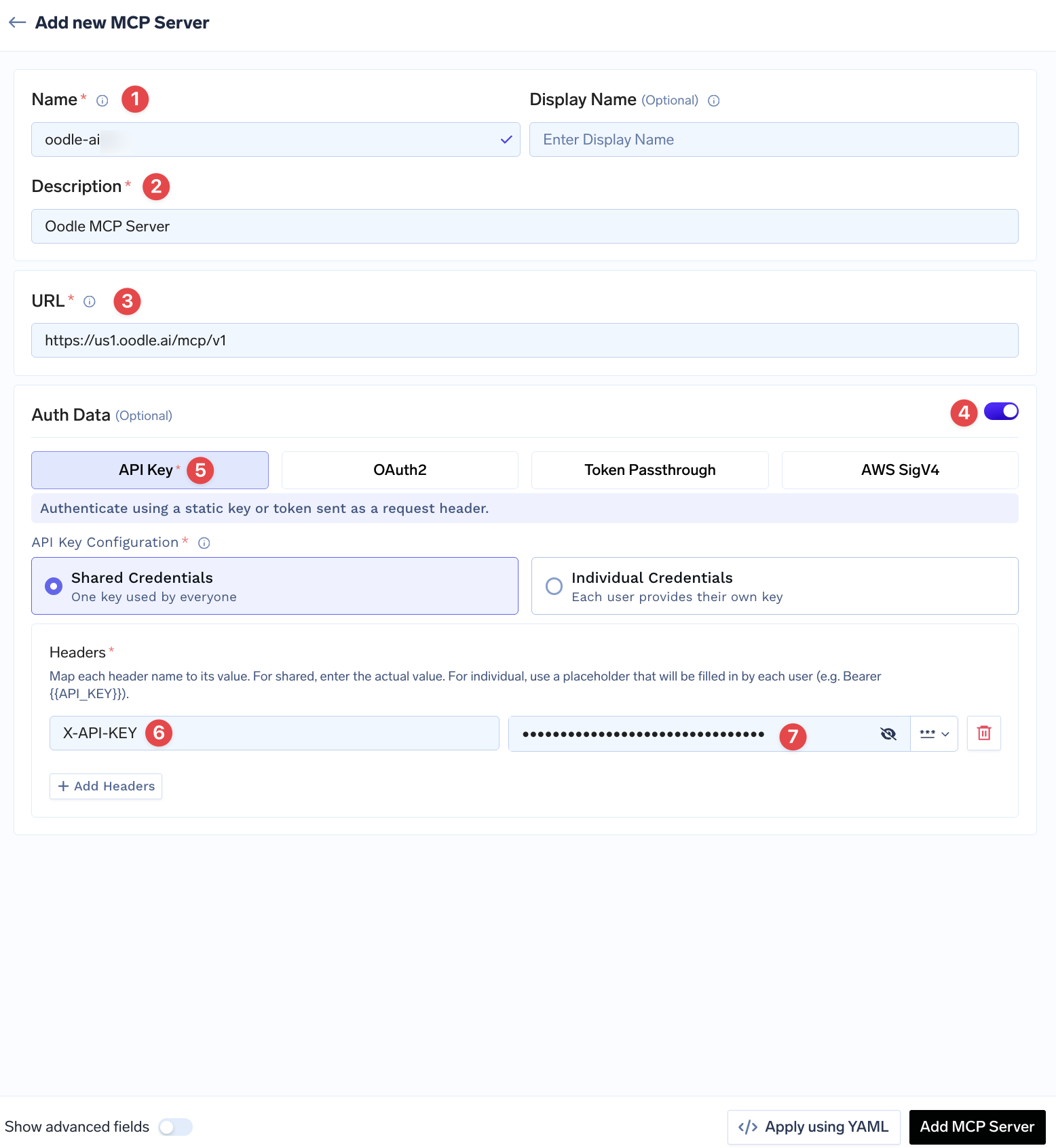
Click Add MCP Server.
The API Key tab of the tile in Oodle gives the URL and your API key, each with a copy button.
Available Tools
The Oodle MCP server provides comprehensive observability tools across the following categories:
Logs
Query and filter logs with flexible time ranges and field-based filtering. Discover available fields and run aggregations to analyze log patterns.
Metrics
Execute PromQL queries to access your metrics data. Search for metrics, explore labels, and validate queries.
Traces
Search distributed traces by service, operation, or custom tags. Retrieve specific trace details and explore available trace attributes.
Alerts
Access active alerts, view monitor configurations, and check historical trigger data to understand your alerting landscape.
Grafana
Interact with Grafana dashboards programmatically. Search, retrieve, update dashboards, and query panel data directly. Dashboard write operations (save/update) require an Editor or Admin API key.
RUM (Real User Monitoring)
Query user sessions, browse session events, and investigate frontend issues and errors reported by the RUM SDK.
Integrations
Discover available integrations and retrieve setup specifications for onboarding new data sources.
Troubleshooting
"Callback URL mismatch" at sign-in
Oodle accepts the gateway callback of every TrueFoundry tenant on
truefoundry.cloud. If your control plane runs on its own domain, contact
Oodle support with your callback URL. TrueFoundry shows it as Redirect URL
at the top of the OAuth2 form.
Sign-in fails after the login page
Make sure that Grant Type is Authorization Code and that Client Secret is empty. The Oodle OAuth client accepts only the authorization code grant.
Tools fail with an API key
Make sure that the header name is exactly X-API-KEY. With Individual
Credentials, each user must add their own key under Auth Overrides
before the tools work for them.
Support
If you need assistance or have any questions, please reach out to us through:
- Email at [email protected]