AI Canvas
AI Canvas is a full-page, conversational AI assistant built into Oodle. It can query your metrics, logs, and traces, create Grafana dashboards and alerts, navigate the UI on your behalf, and answer questions about your infrastructure — all through natural language.
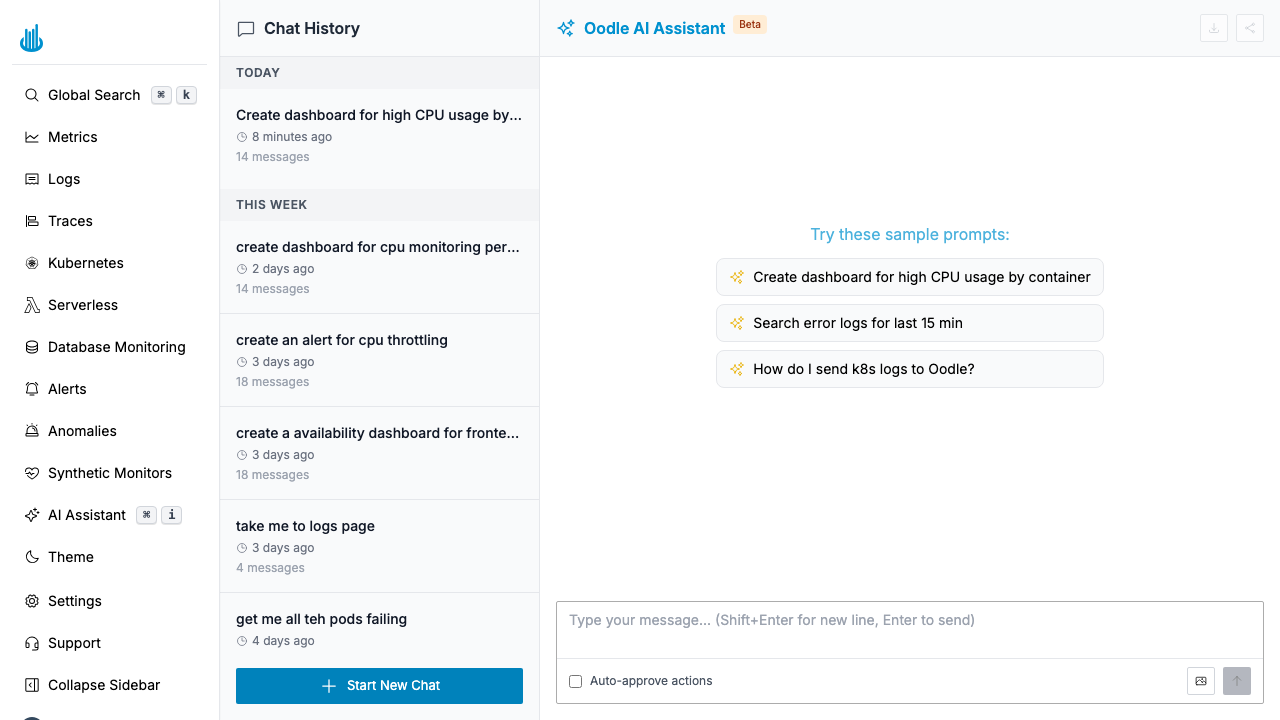
Accessing AI Canvas
There are two ways to interact with the AI assistant:
Full-Page Canvas
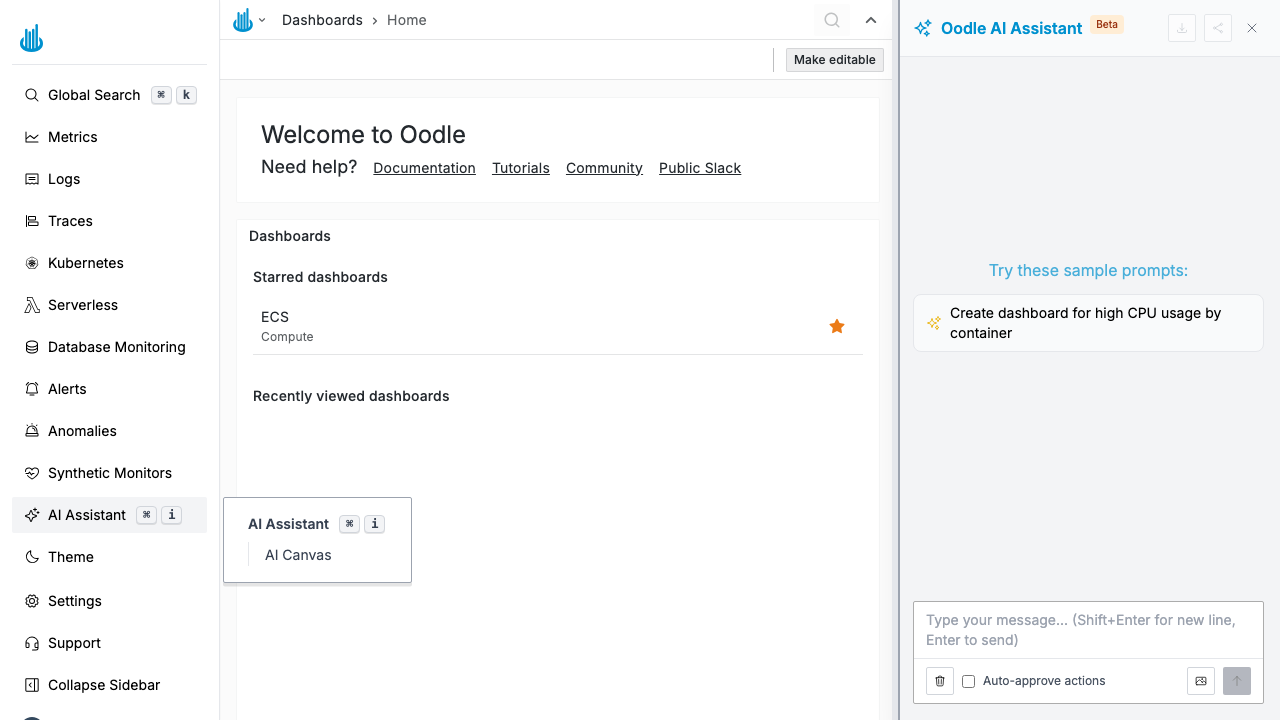
Click AI Assistant in the sidebar, then select AI Canvas to open
the dedicated full-page experience. You can also navigate directly to
/ai-canvas. The full-page canvas includes a chat history sidebar on the
left so you can revisit previous conversations.
Sidebar Assistant
Click AI Assistant (or press Cmd + I) from any page to open the sidebar panel. The sidebar overlays the current page, giving you quick access to the AI while keeping your current context visible.
Capabilities
| Capability | Description |
|---|---|
| Metrics | Find metrics, query with PromQL, and visualize results inline |
| Logs | Search and summarize logs, identify error patterns |
| Traces | Query traces and analyze latency or error patterns |
| Dashboards | Create and update Grafana dashboards from a prompt |
| Alerts | Create, update, and explain alert monitors |
| Anomalies | Query detected anomalies across your infrastructure |
| Navigation | Navigate to pages, adjust time ranges, and fill forms |
| Integrations | Answer setup questions using Oodle documentation |
Home Page
When you open AI Canvas without an active conversation, the home page shows contextual information below the chat input to help you get started:
- Recent Dashboards — your most-visited Grafana dashboards from the past week, sorted by frequency. If you have fewer than ten personal dashboards, the list is filled with popular dashboards across your organization. Click any dashboard to open it directly.
- Anomalies — the top anomalies detected across your infrastructure in the last 24 hours, sorted by severity and recency. Click any anomaly to jump to the anomalies page with that item expanded.
Both section headers link to their respective full pages (Dashboards and Anomalies).
Using AI Canvas
Starting a Conversation
Type your question in the input box at the bottom and press Enter. You can also click one of the suggested prompts to get started.
Example prompts:
- "Create dashboard for high CPU usage by container"
- "Search error logs for last 15 min"
- "Create an alert for CPU throttling"
- "Summarize logs for last 15 mins"
- "How do I send k8s logs to Oodle?"
Tool Calls and Inline Results
The AI assistant uses tools to interact with your data. As it works, you will see expandable tool call cards showing what the assistant is doing — for example, finding metrics, running PromQL queries, or saving a dashboard. Query results such as charts and tables are rendered inline in the conversation.
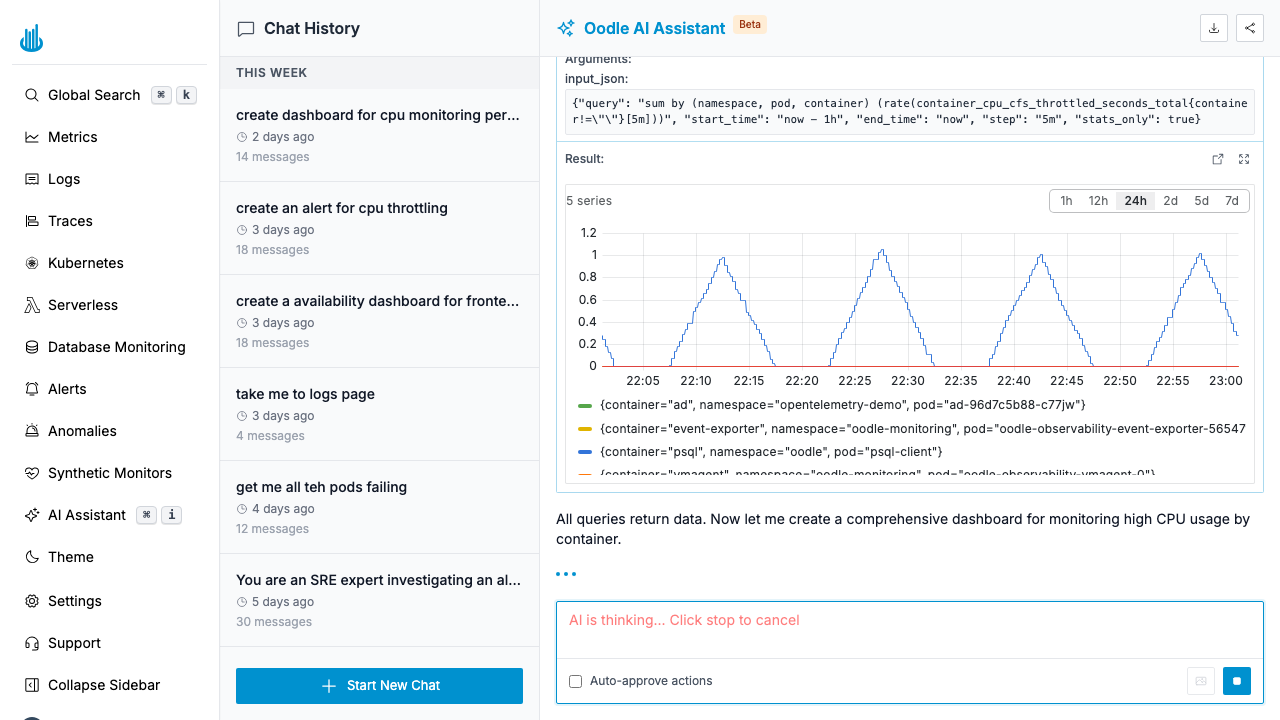
Auto-Approve Actions
Some actions (like creating an alert or navigating to a page) require approval before executing. Enable the Auto-approve actions checkbox at the bottom of the chat to let the assistant execute these actions without prompting.
Following Up
After the assistant responds, you can ask follow-up questions in the same conversation. For example, after creating a dashboard you might ask the assistant to add more panels or adjust the time range.
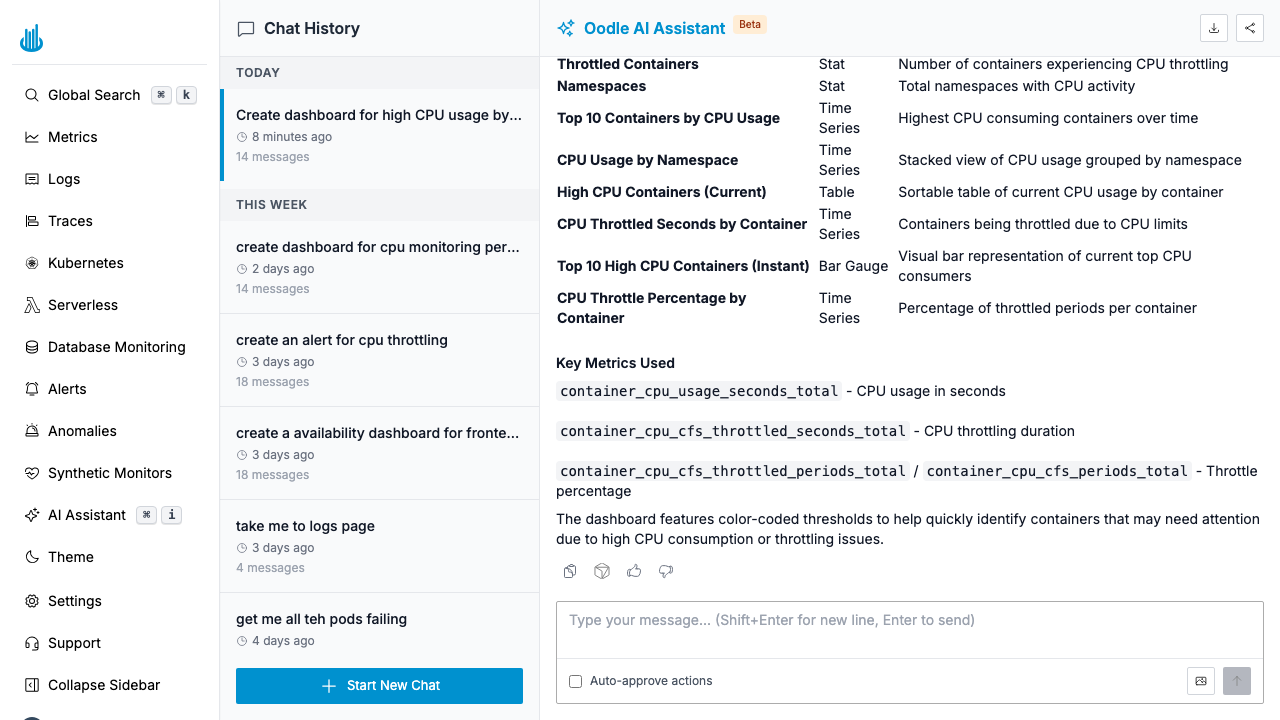
Chat History
AI Canvas persists your conversations. The Chat History sidebar on the left lists all previous sessions with their title, age, and message count. Click any entry to reload that conversation and continue where you left off. Click Start New Chat to begin a fresh session.
Example Workflows
Create a Dashboard
"Create a health dashboard for the frontend service"
The assistant will:
- Search for relevant metrics in your environment
- Run PromQL queries to verify the metrics return data
- Build a Grafana dashboard with appropriate panels
- Save the dashboard and provide a link to open it
Debug an Alert
"Why is my CPU throttling alert firing?"
The assistant will:
- Look up the alert definition and current status
- Query the underlying metrics to identify the source
- Check logs and traces for correlated errors
- Summarize findings and suggest next steps
Search Logs
"Show me error logs from the payment service in the last hour"
The assistant will:
- Identify the appropriate log index
- Run a filtered query for error-level logs
- Summarize the top patterns and provide representative log entries
Support
If you need assistance or have any questions, please reach out to us through:
- Email at [email protected]