Logs Visualization

The logs system uses a custom columnar storage engine that handles high-volume queries without timeouts. The interface includes AI-powered analysis, automatic pattern detection, and direct integration with metrics and traces.
Visual Features
Severity Indicators
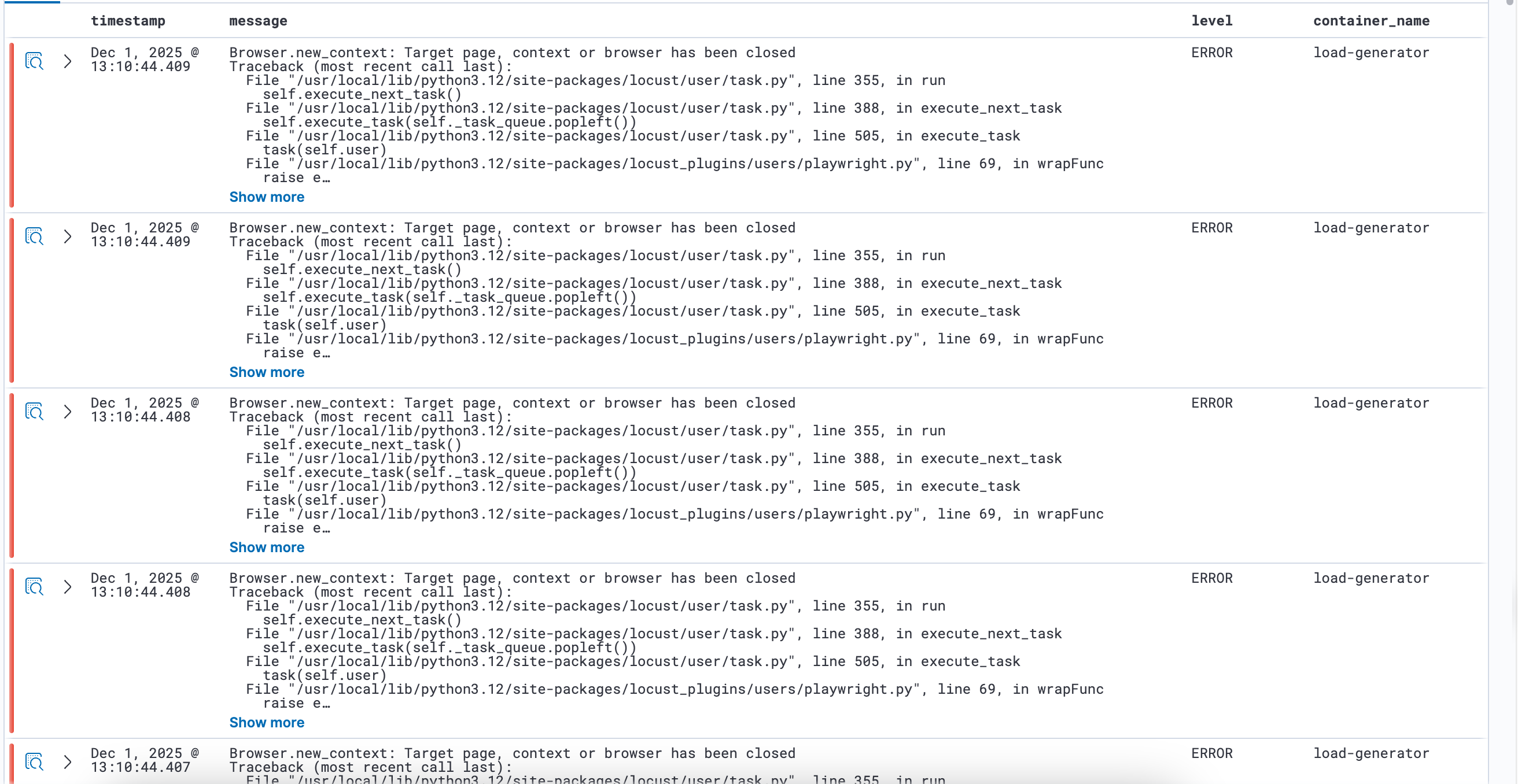
Each log line displays a color-coded severity bar (INFO, WARN, ERROR, etc.). Hover over the bar to see the severity level.
Log Patterns
The Patterns tab groups logs by fingerprint similarity. The Insights panel shows pattern frequency and distribution over time.

JSON Viewer
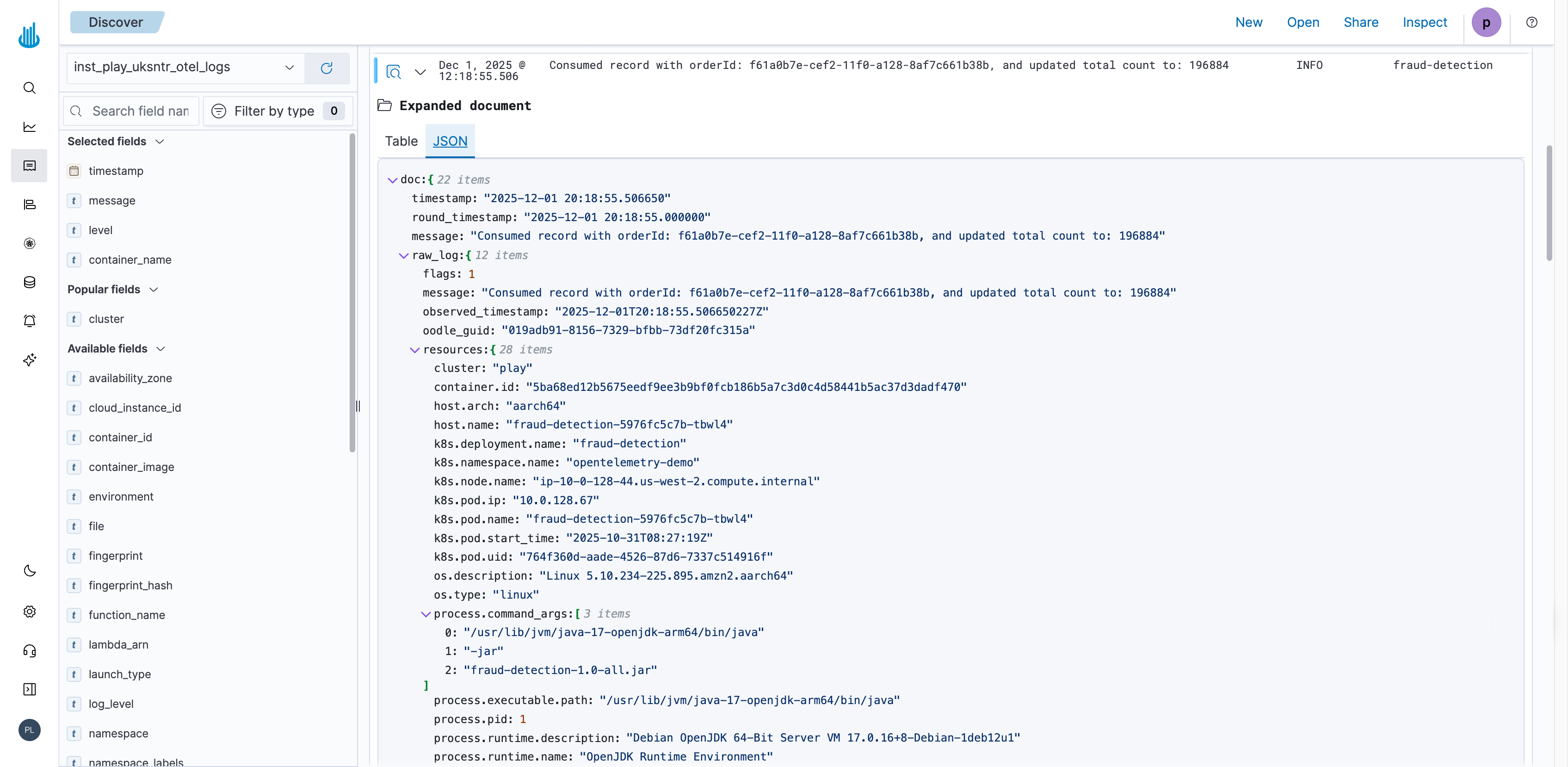
Expand any log row to view all fields in either table or JSON format. The JSON view supports:
- Expandable/collapsible nested objects
- Copy buttons for individual fields or entire subtrees
- Direct filtering from field values
AI Features
AI Assistant Experience
Select any text in a log entry to interact with the AI Assistant. The context menu provides options to:
- Ask questions about the log message or error
- Debug the issue with Cursor integration
- Get troubleshooting suggestions
This works with any selected text, including error messages, stack traces, or field values.
Log Summaries
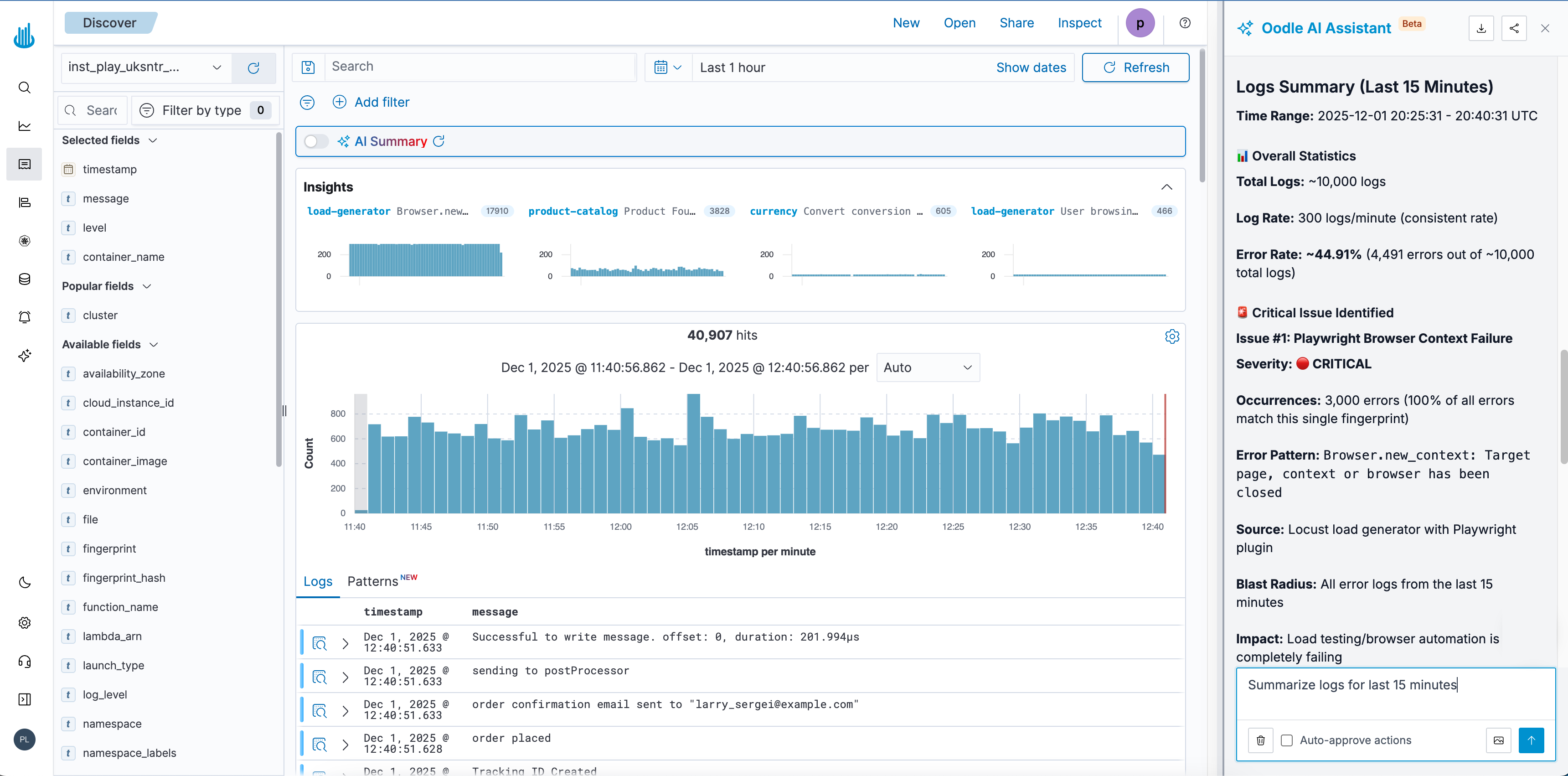
Toggle the AI Summary switch to generate an analysis of the current log view. The summary includes:
- Total log count, rate, and error percentage
- Critical issues with severity ratings
- Error pattern frequency
- Impact analysis and affected components
- Root cause identification
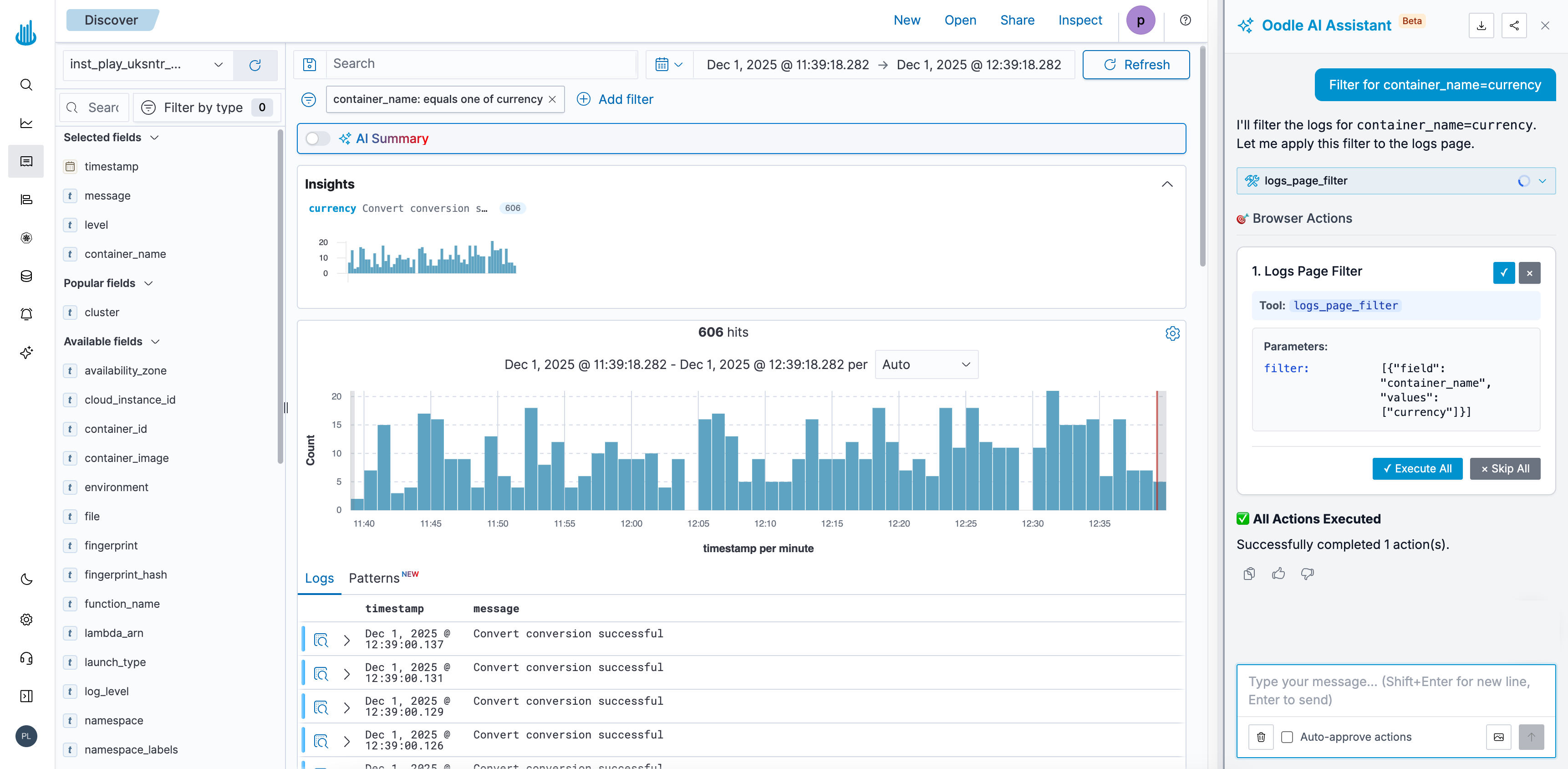
The AI can also accept natural language requests to filter and query logs. Examples:
"Show me all errors from the payment service in the last hour"
"Filter logs where container_name is currency"
"Find logs with status code 500"
Log Anomaly Detection
The system continuously monitors your logs and automatically detects anomalies such as new error patterns, spikes in existing errors, and high-volume recurring issues. Detected anomalies appear on the Anomalies page where you can review them, set up alerts, or block repetitive patterns to reduce noise.
Cross-Signal Navigation
Exploring Related Data
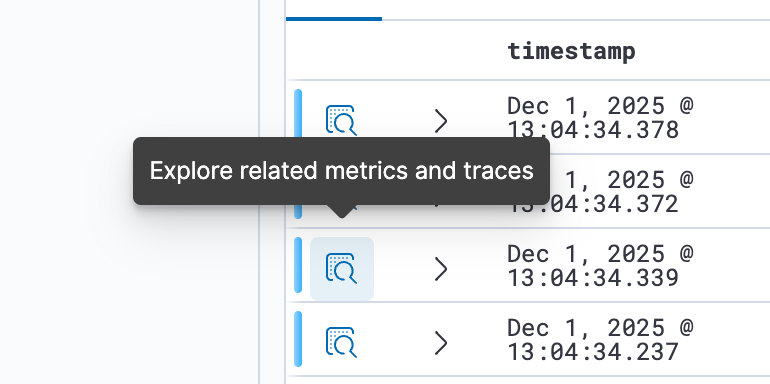
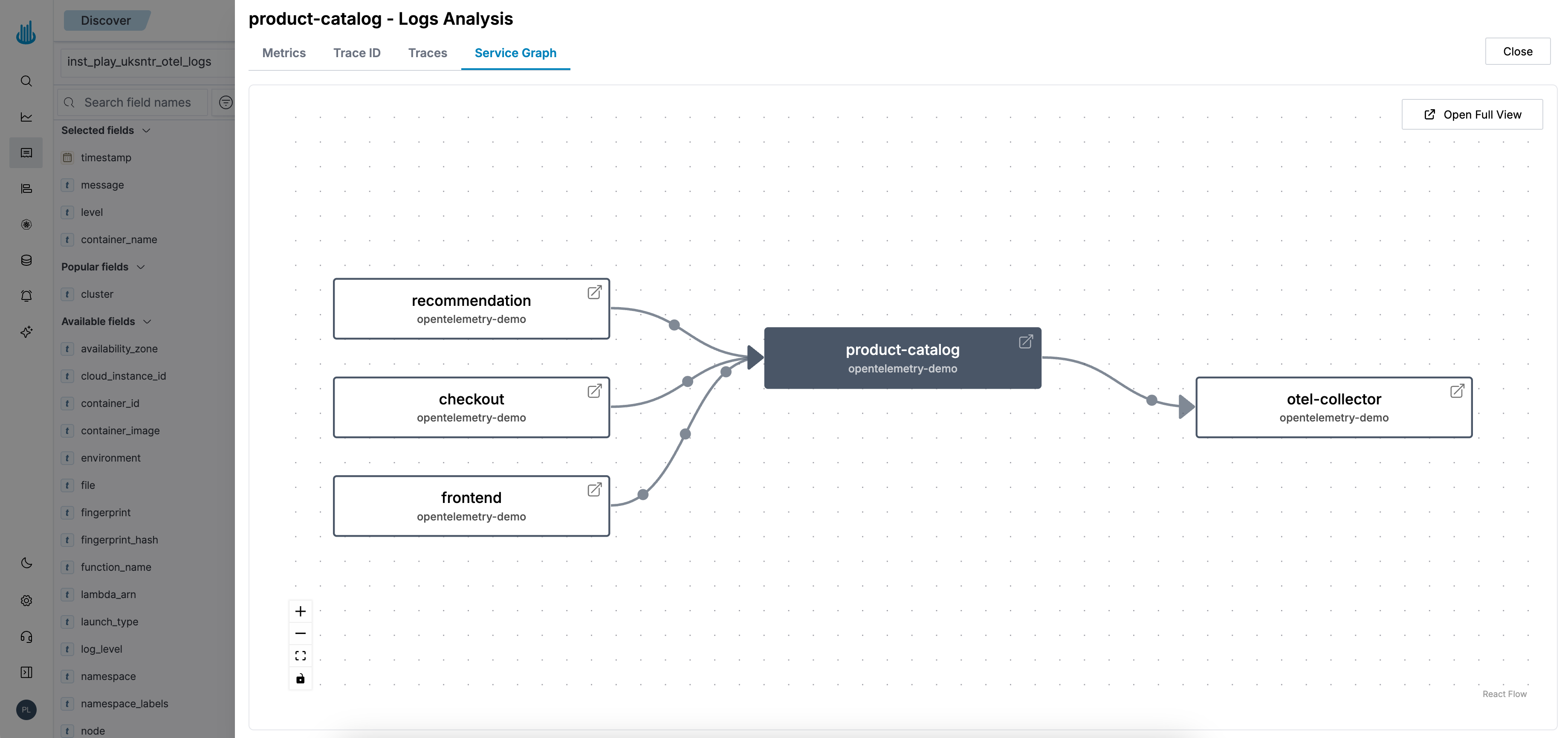
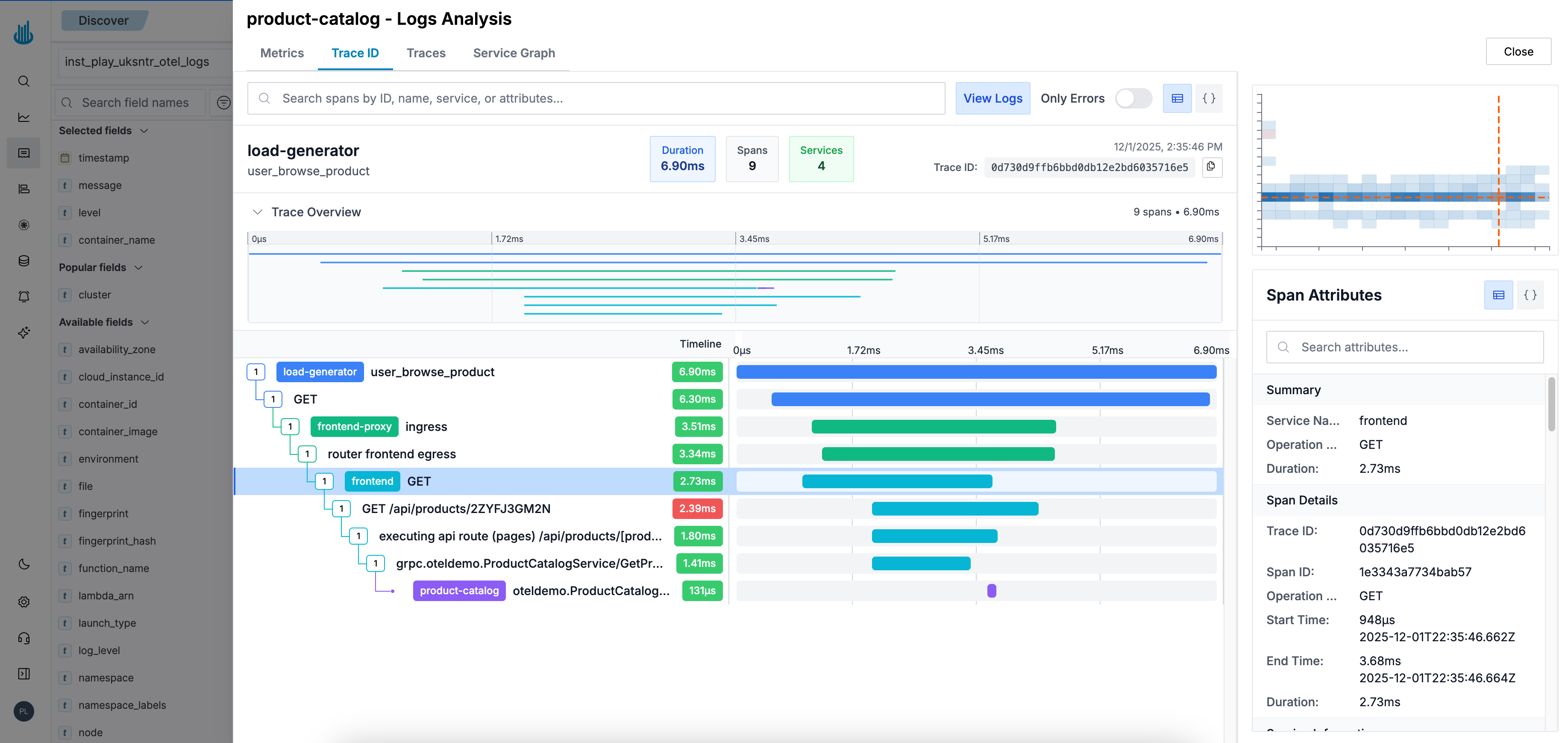
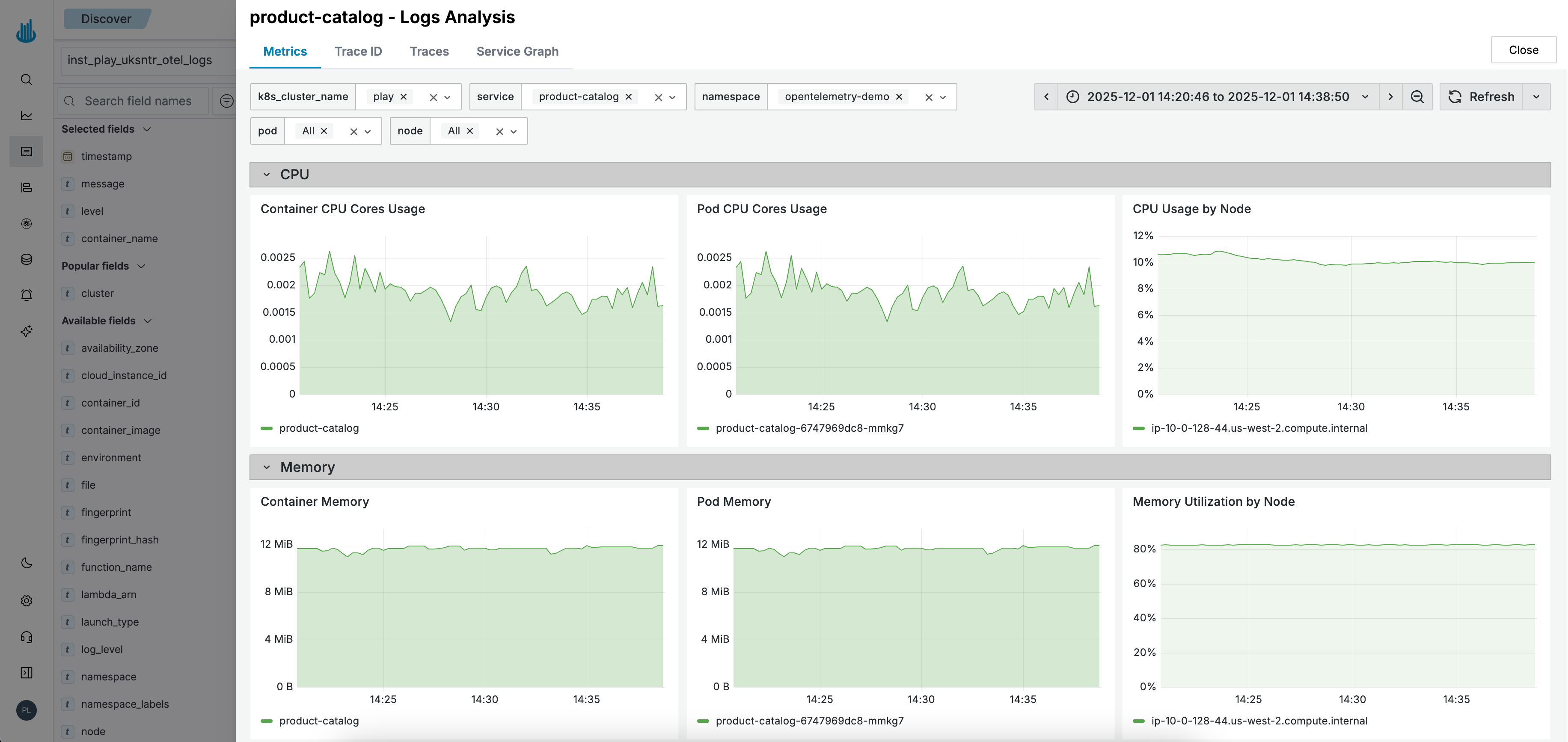
Click "Explore related metrics and traces" on any log line to open an analysis panel with four tabs:
Service Graph: Displays the service and its dependencies.
Trace ID: Shows the distributed trace associated with the log entry, including all spans and timing information.
Metrics: Displays CPU and memory usage for the service at the log timestamp.
Traces: Lists all traces for the service in the selected time range, filterable by error status or duration.
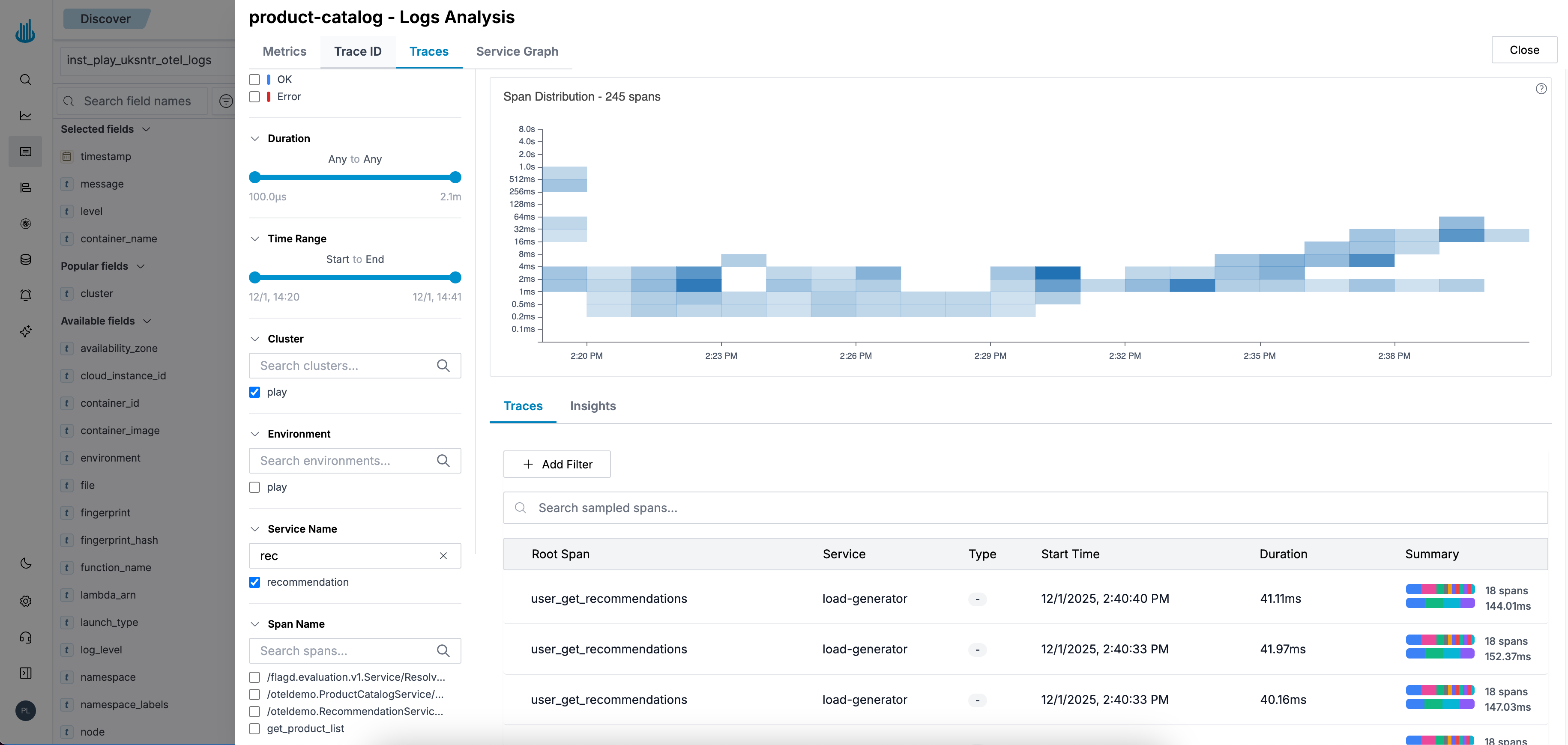
The analysis panel automatically filters data to match the service and timeframe of the selected log.
Storage and Performance
The storage engine uses columnar format optimized for log data:
- Queries do not timeout regardless of data volume or time range
- Automatic field indexing without manual schema configuration
- Efficient compression maintains query speed at scale
- High ingestion throughput with consistent query performance
Dashboards and Visualizations
Build dashboards and charts to analyze your log data:
- Dashboards - Create dashboards to monitor your logs with multiple panels
- Visualizations - Build line charts, bar charts, pie charts, and more from your logs
Support
If you need assistance or have any questions, please reach out to us through:
- Email at [email protected]