Provisioning (Git Sync)
Provisioning lets you sync Oodle resources bidirectionally with a Git repository. Changes made in Oodle are automatically committed to Git, and changes pushed to Git are applied back to Oodle.
This enables infrastructure-as-code workflows for your observability configuration — version-controlled dashboards, alerts, monitors, and more.

Supported Resources
| Resource Type | Description |
|---|---|
| Dashboards | Grafana dashboards and folders |
| Monitors | Alert monitors |
| Notifiers | Notification channels (Slack, PagerDuty, etc.) |
| Notification Policies | Alert routing rules |
| Muting Rules | Alert suppression rules |
| Schedules | Muting schedules |
| Log Transforms | Log transformation pipelines |
| Log Metrics | Metrics derived from logs |
| Synthetic Monitors | Synthetic monitoring checks |
| AI Skills | AI assistant skills |
How It Works
-
Outbound sync (Oodle → Git): When a resource changes in Oodle, the syncer serializes it to JSON and commits it to your repository with an AI-generated commit message describing the change.
-
Inbound sync (Git → Oodle): When files change in the repository (via direct commit or merged PR), the syncer detects the changes and applies them to Oodle.
Sync runs on a configurable polling interval (default: 5 minutes). You can also enable webhooks for real-time sync when changes are pushed to GitHub.
Repository Structure
Resources are stored in a configurable subdirectory of your repository. Each resource type has its own folder:
<directory>/
  dashboards/
    FolderName/
      my-dashboard.json
    another-dashboard.json
  monitors/
    019d269f-002f-772f-b787-0ecfb7f17273.json
  alerts/
    my-alert.json
  log_transforms/
    transform-id.json
  log_metrics/
    metric-id.json
  synthetic_monitors/
    monitor-id.json
  ...
Dashboard folders are preserved as directories, matching the folder hierarchy in Grafana.
Setting Up a Connection
Navigate to Settings → Provisioning in the sidebar and click Add Connection.
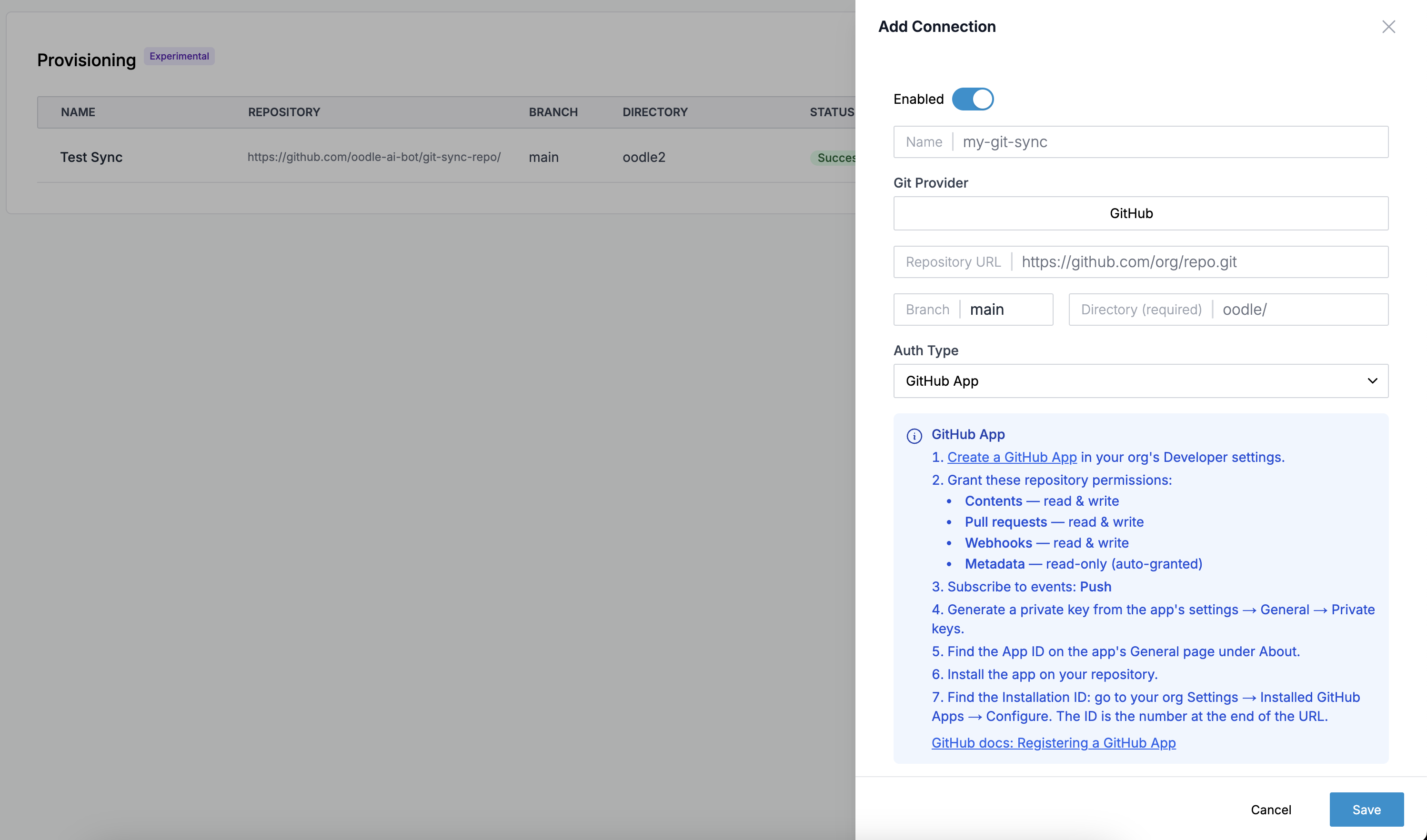
Step 1: Basic Configuration
- Name: A descriptive name for this connection
- Git Provider: Currently GitHub is supported
- Repository URL: The HTTPS URL of your Git
repository (e.g.
https://github.com/org/repo.git) - Branch: The branch to sync with (default:
main) - Directory: The subdirectory within the repository where resources are stored (required)
Step 2: Authentication
Choose one of two authentication methods:
Personal Access Token (PAT)
Create a fine-grained PAT scoped to your repository with these permissions:
- Contents — read & write
- Pull requests — read & write
- Webhooks — read & write
- Metadata — read-only (auto-granted)
GitHub App
For organization repositories, you can use a GitHub App:
- Create a GitHub App in your organization settings
- Note the App ID from the app's General page
- Install the app on the repository and note the Installation ID from the URL
- Generate a private key and paste it in the configuration
- Grant the app these permissions:
- Contents — read & write
- Pull requests — read & write
- Metadata — read-only
When using a GitHub App, webhooks are always enabled for real-time sync.
Step 3: Resource Selection
Select which resource types to sync. By default, all supported types are selected. You can deselect types you don't want to manage via Git.
Step 4: Webhook (Optional)
Enable the webhook toggle to receive real-time sync triggers when changes are pushed to your repository. Without webhooks, sync relies on the polling interval.
For PAT connections, this is optional. For GitHub App connections, webhooks are always enabled.
Viewing Sync Status
Click on any connection in the Provisioning table to open the detail drawer.
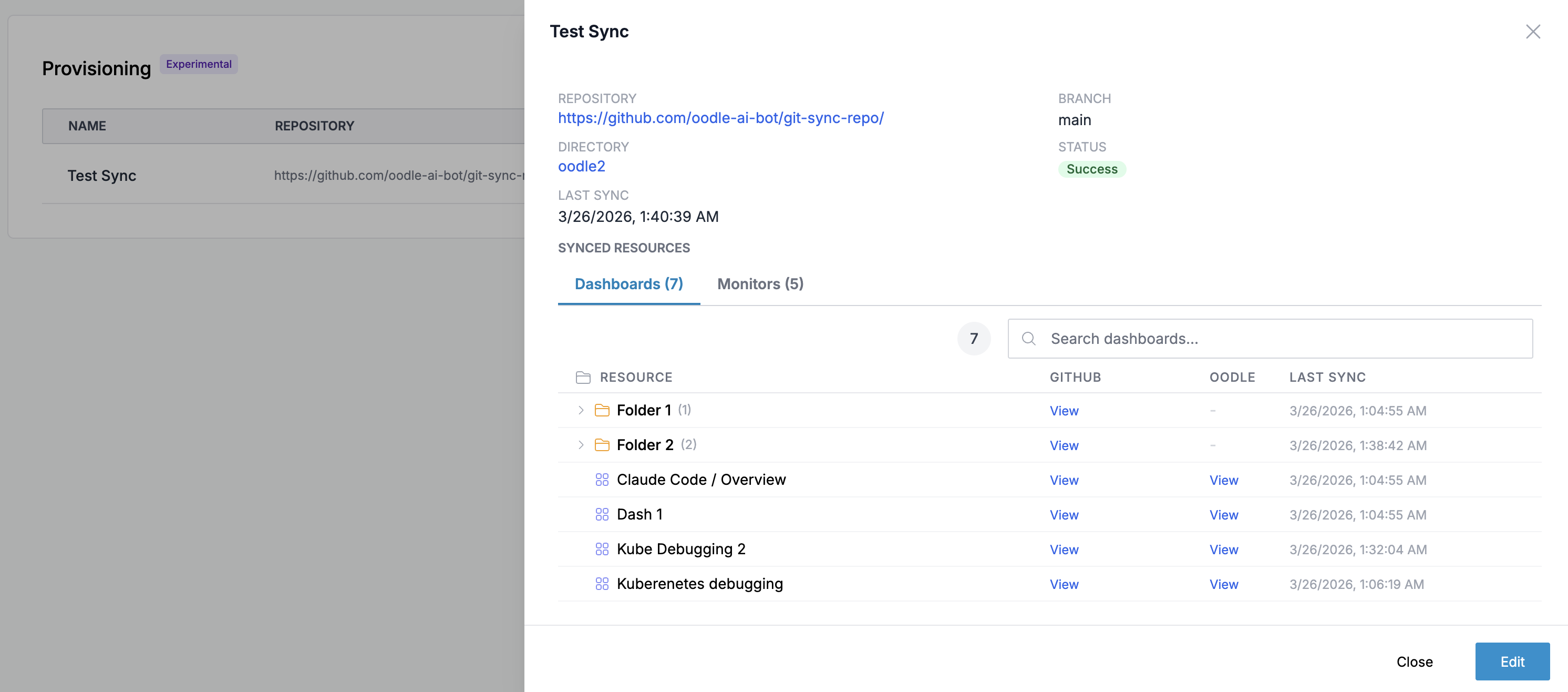
This shows:
- Repository and branch (clickable links to GitHub)
- Directory path
- Sync status — success, partial, or error
- Last sync time
Resource Details
The detail drawer contains tabs for each synced resource type. Each tab shows:
- Total resource count
- Per-resource links to both GitHub (the JSON file) and Oodle (the resource in the UI)
- Last sync time per resource
For dashboards, resources are displayed in a folder tree that mirrors the Grafana folder hierarchy. Expand folders to see individual dashboards.
If any resources failed to sync, a red badge shows the failure count.
Sync Behavior
Conflict Resolution
- If a resource is modified in both Oodle and Git between sync cycles, the most recent change wins.
- Newly created resources that haven't been synced yet are protected from deletion for 24 hours.
Deletes
- When a resource is deleted in Oodle, the corresponding
file is moved to a
deleted/folder in the repository (rather than permanently removed) and garbage-collected after one week. - When a file is removed from Git, the resource is deleted from Oodle on the next sync.
- Safety guard: if all resources of a given type would be deleted, the delete operation is skipped to prevent accidental mass deletion.
Filtered Resources
Dashboards tagged with oodle-generated are excluded
from sync. These are system-generated dashboards that
should not be version-controlled.
Managing Connections
Editing
Click the ⋯ menu on a connection row and select Edit, or click Edit in the detail drawer. You can change the branch, directory, resource types, webhook settings, and authentication credentials.
Triggering a Manual Sync
Click the sync icon (↔) on a connection row to trigger an immediate sync outside the regular polling interval.
Disabling
Toggle the Enabled switch in the edit drawer to pause syncing without deleting the connection. Disabled connections show a gray indicator in the table.
Deleting
Click the ⋯ menu and select Delete to permanently remove a connection. This does not delete any resources from Oodle or files from Git.
Best Practices
Use a Dedicated Directory
Always use a dedicated subdirectory (e.g. oodle/) rather
than the repository root. This keeps Oodle resources
organized and avoids conflicts with other files.
Start with a Subset
When setting up git sync for the first time, start with one or two resource types to verify the sync behavior before enabling all types.
Review Changes in Git
Since all changes are committed to Git with descriptive
messages, you can use standard Git tools (git log,
git diff, pull request reviews) to audit what changed
and when.
Use Branch Protection
For production environments, consider using branch protection rules on your sync branch to require PR reviews before changes are merged — giving your team a review step before Git changes reach Oodle.
Support
If you need assistance or have any questions, please reach out to us through:
- Email at [email protected]